ROM Rescue Switcher
v4.0.0
The ROM Rescue Switcher, or rescue switcher, is a small program that the board starts as a ROM, in place of TOS or Kickstart. It lists the ROM images stored on the board and starts the one you choose, so you can always get back to a working image, even when the default one does not boot. It needs nothing from the computer: no TOS, no Kickstart, no disk. From v4.0.0 it also tests the board.
It is the rescue image of the SidecarTridge TOS and Kickstart emulators: the one they start when you hold the RESCUE button.
Project links:
Table of contents
Which image
There is one image for each kind of computer:
| Computer | ROM size | Image |
|---|---|---|
| Atari ST, Mega ST | 192 KB | RESCUE_SWITCHER_v4.0.0_192KB.img |
| Atari STE, Mega STE | 256 KB | RESCUE_SWITCHER_v4.0.0_256KB.img |
| Amiga 500, Amiga 2000 | 512 KB | RESCUE_SWITCHER_v4.0.0_512KB.img |
A new SidecarTridge TOS or Kickstart board already has the right one on its ROMEMUL drive, named in RESCUE.TXT. The images are also on the downloads page and on the project’s releases page.
The rescue switcher 4.0.0 works only with firmware v4.0.0, and the firmware v4.0.0 only with the rescue switcher 4.0.0. A board updated from firmware v3.1.0 still has the rescue switcher 3.1.0, which stops at a “not compatible” screen: replace it as described below.
Installing or upgrading it
- Connect the board to your computer: the
ROMEMULdrive opens. - Copy the image for your computer to the drive.
Open
RESCUE.TXTand write the image’s name in it, exactly as the file is called, for example:RESCUE_SWITCHER_v4.0.0_192KB.img- Delete the old
RESCUE_SWITCHER_v3.1.0_...image, if there is one, unless you want to keep it in your list. - Eject the drive. The board rebuilds its list with the new rescue image.
The TOS and Kickstart upgrade guides include these steps: Upgrading the SidecarTridge TOS, Upgrading the SidecarTridge Kickstart.
Starting it
The board starts its rescue image:
- with the RESCUE button held while the computer is switched on, released once it has started (TOS, Kickstart);
- with
RESCUE_TIMEOUT, on a computer with a RESET button (the Atari ST family; the Amiga 500 and 2000 have none): switched on with RESET held for longer than the seconds set inCONFIG.TXT(TOS); - on its own, when the board cannot serve the default image.
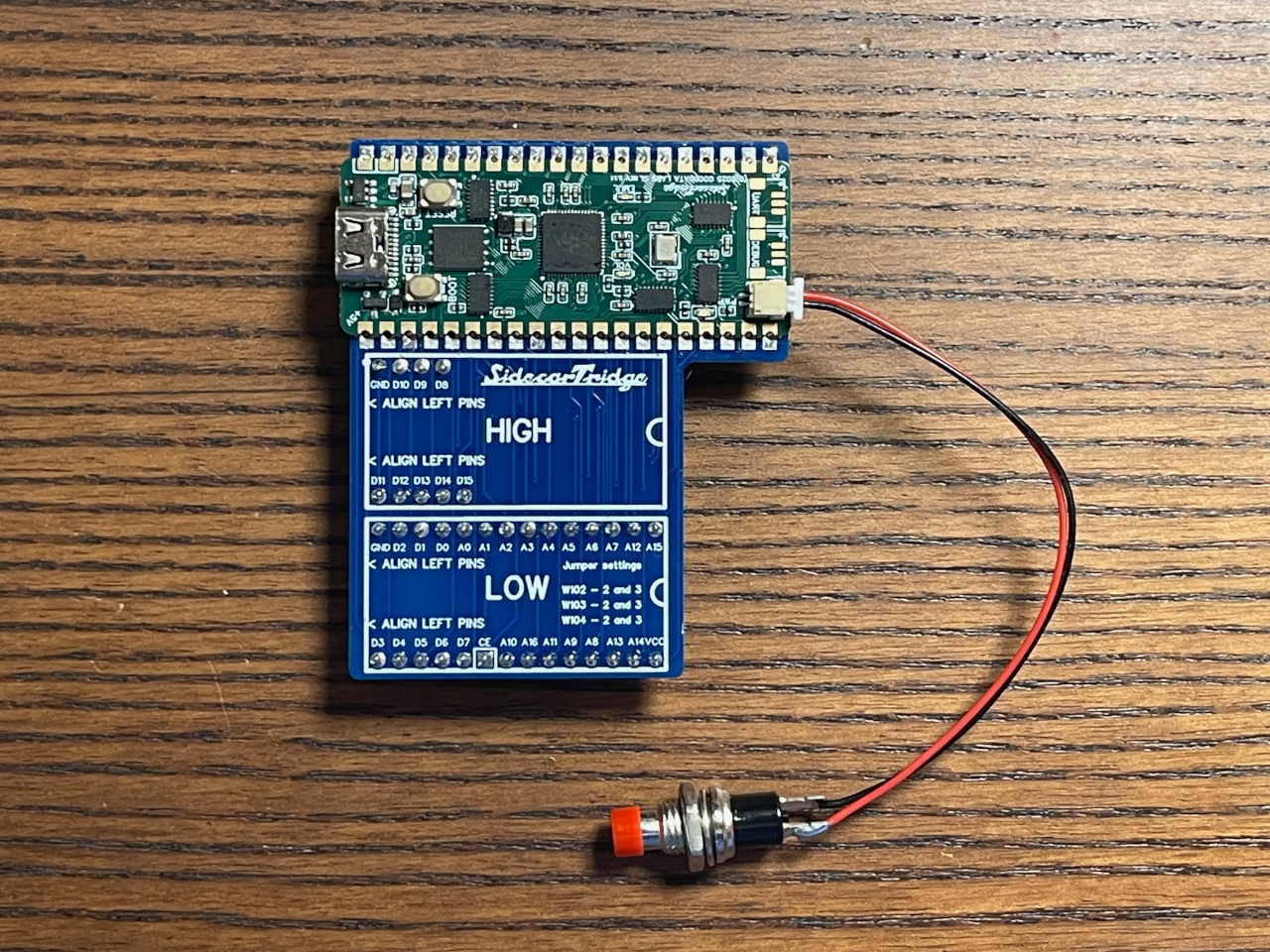
On the SidecarTridge TOS and Kickstart boards, the RESCUE cable connects to the RESCUE pins on the back of the board:

The start screen
When it starts, the rescue switcher checks its own image and shows its version, the image size and its build:
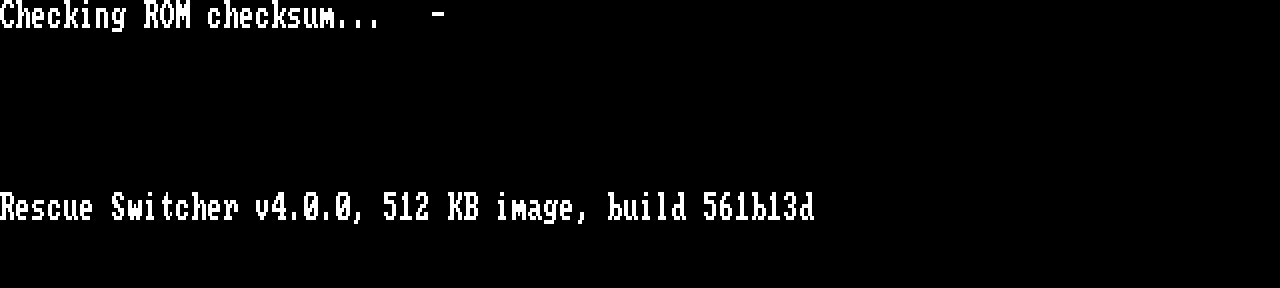
Then it says “Loading available ROM images…” and checks that the board answers. On a working board the list follows at once.
If the check of its own image fails, it shows “ROM checksum FAIL” with two numbers and waits for a key, then carries on. The image on the drive is damaged, or is not the published file: copy it to the drive again and eject.
The list
The rescue switcher shows the ROM images on the board, in alphabetical order, 17 to a page:
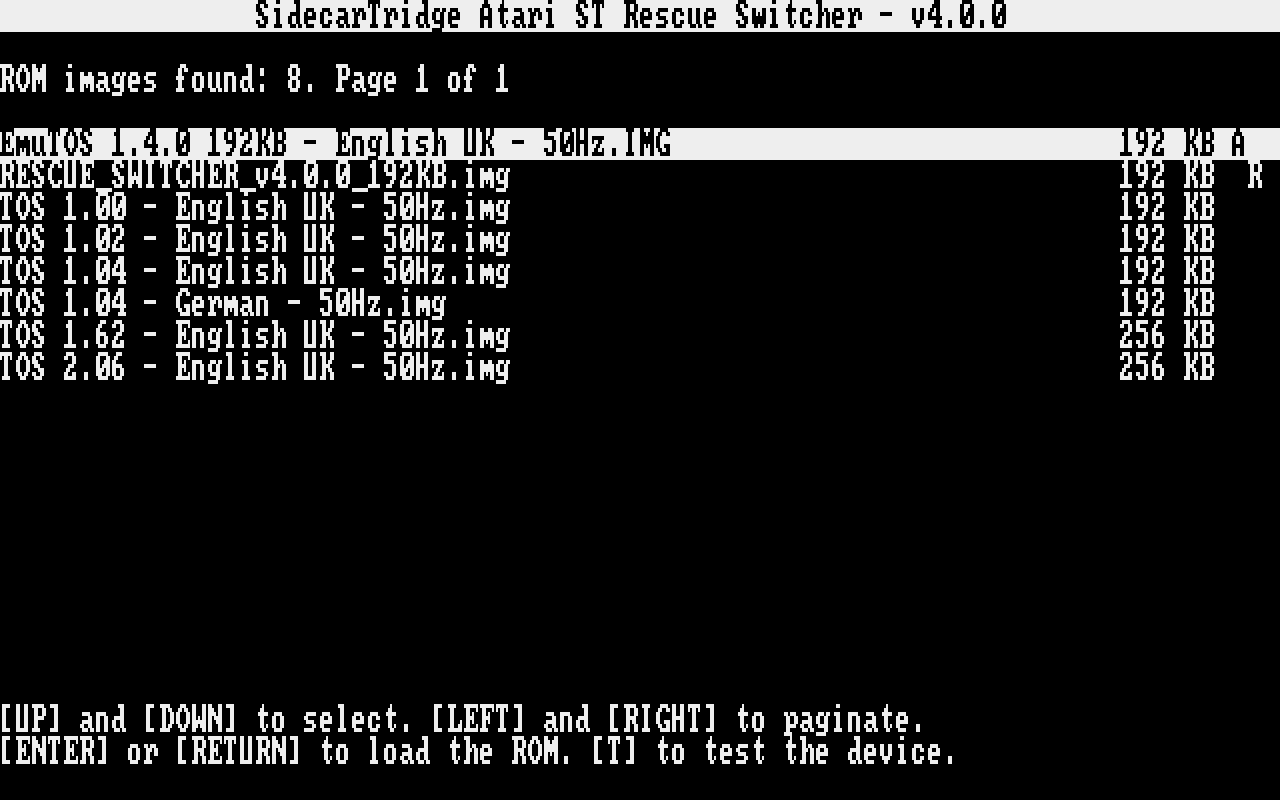
The title names the image: Atari ST, Atari STE, or Amiga 500/2000. Each row shows an image’s name and size, and a letter:
- A marks the active image: the default one, which starts when the computer is switched on normally.
- R marks the rescue image, normally the rescue switcher itself.
| Key | What it does |
|---|---|
UP, DOWN | Move through the list |
LEFT, RIGHT | Previous and next page |
RETURN or ENTER | Start the selected image |
T | Test the board |
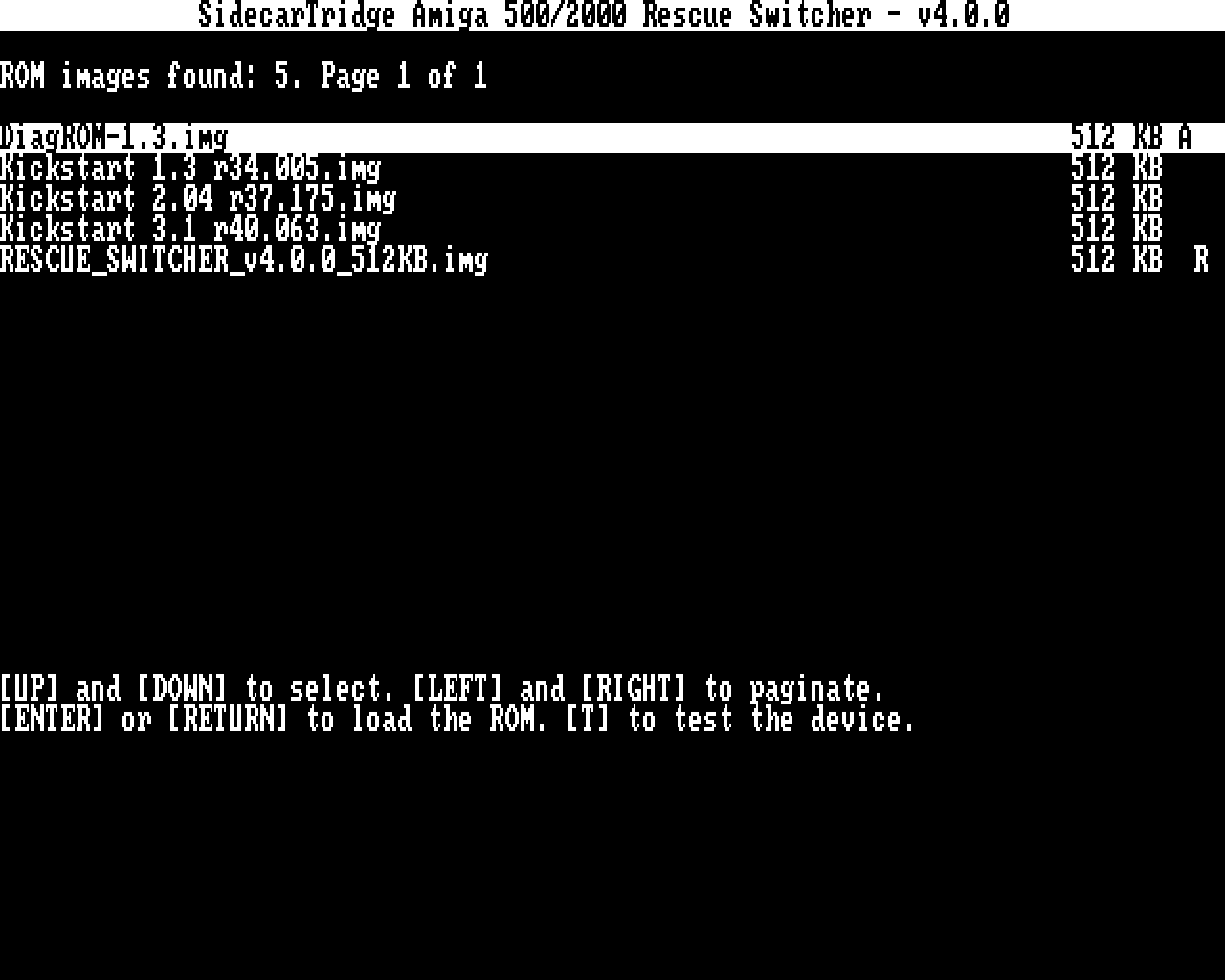
There is no key to leave: choose an image, or switch the computer off. On the Amiga the list looks the same:
Starting an image
Move to the image and press RETURN. The rescue switcher asks for confirmation at the bottom of the screen:
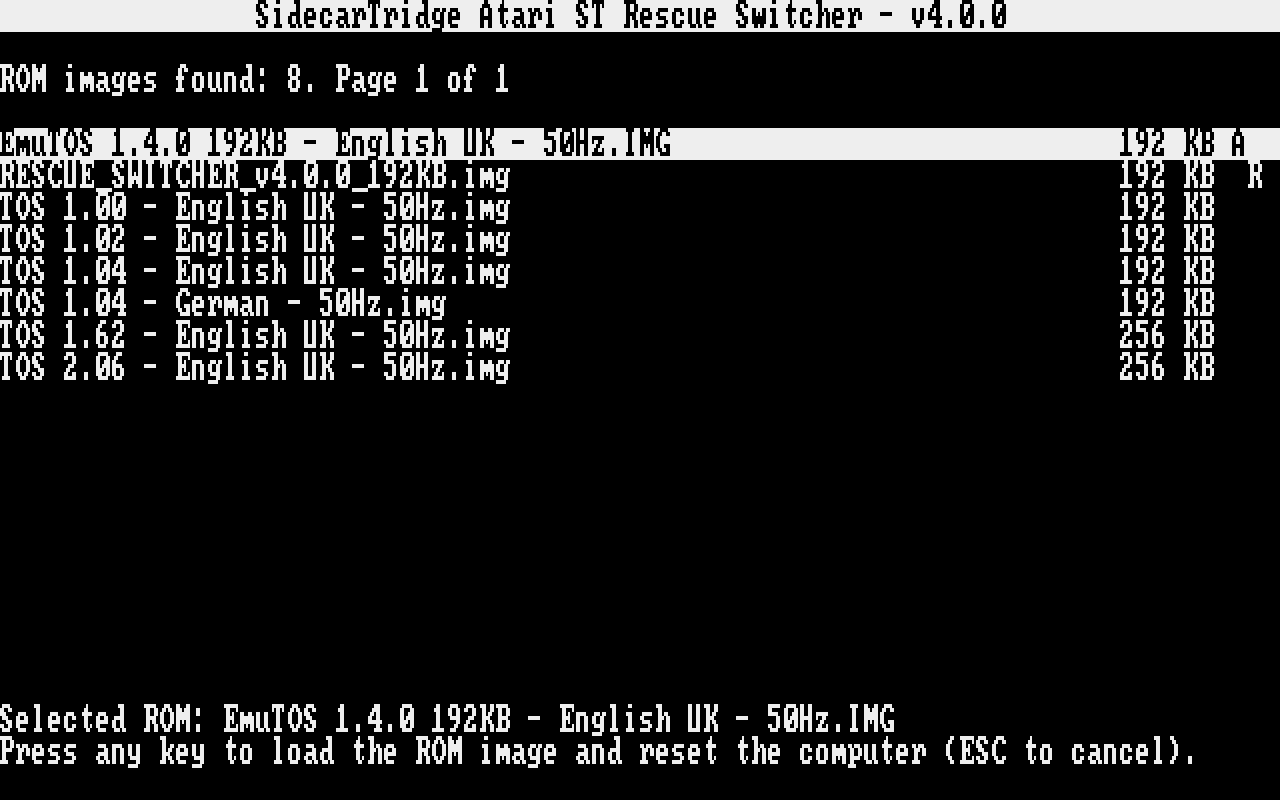
Press any key to start it, or ESC to go back to the list. It shows “Rebooting the computer with the new ROM…” and restarts the computer with the image: an Atari after about 3 seconds, an Amiga at once.
The image you start becomes the default one, marked A, until the ROMEMUL drive is next ejected. The board then takes the default from DEFAULT.TXT again, which the rescue switcher does not change. To keep your choice, select the image in the SWITCHER as well, or write its name in DEFAULT.TXT.
The self-test
v4.0.0
Press T in the list to test the board and its connection to the computer. The test takes a few seconds, then shows one line for each check:
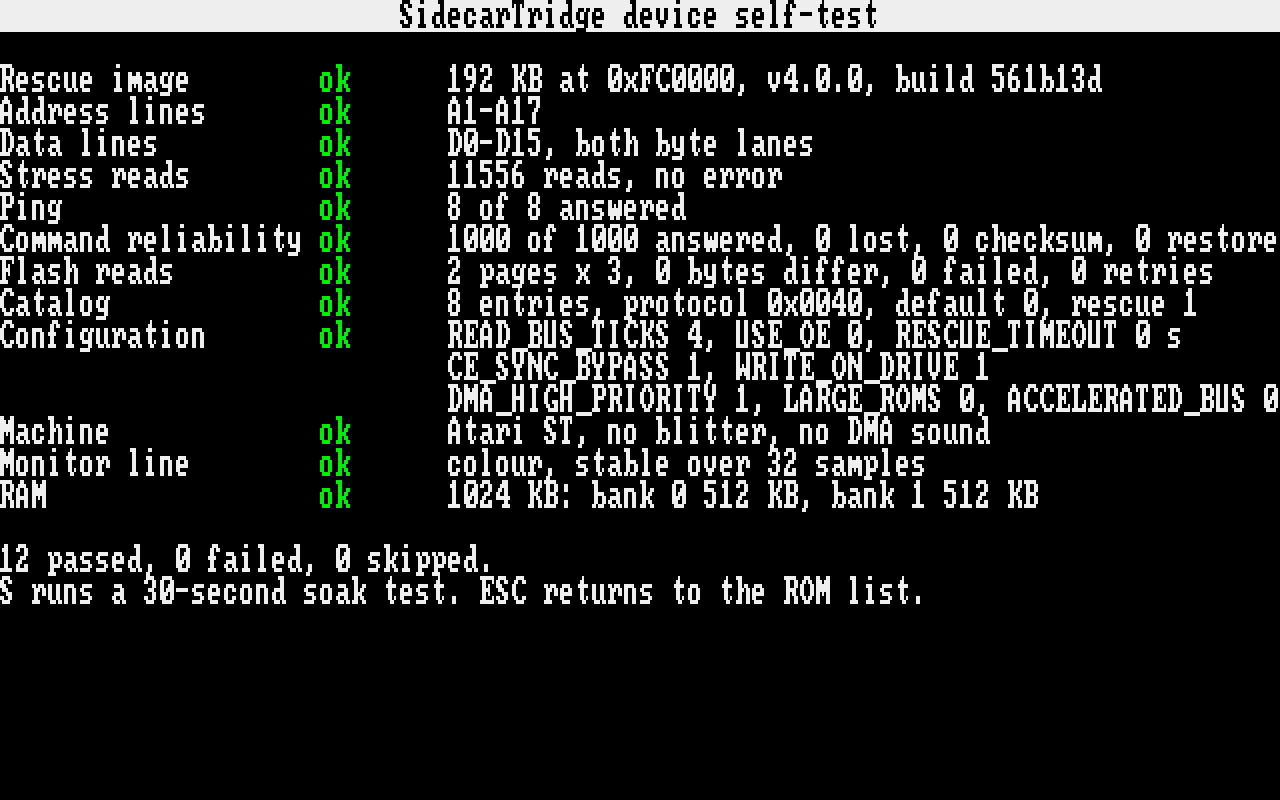
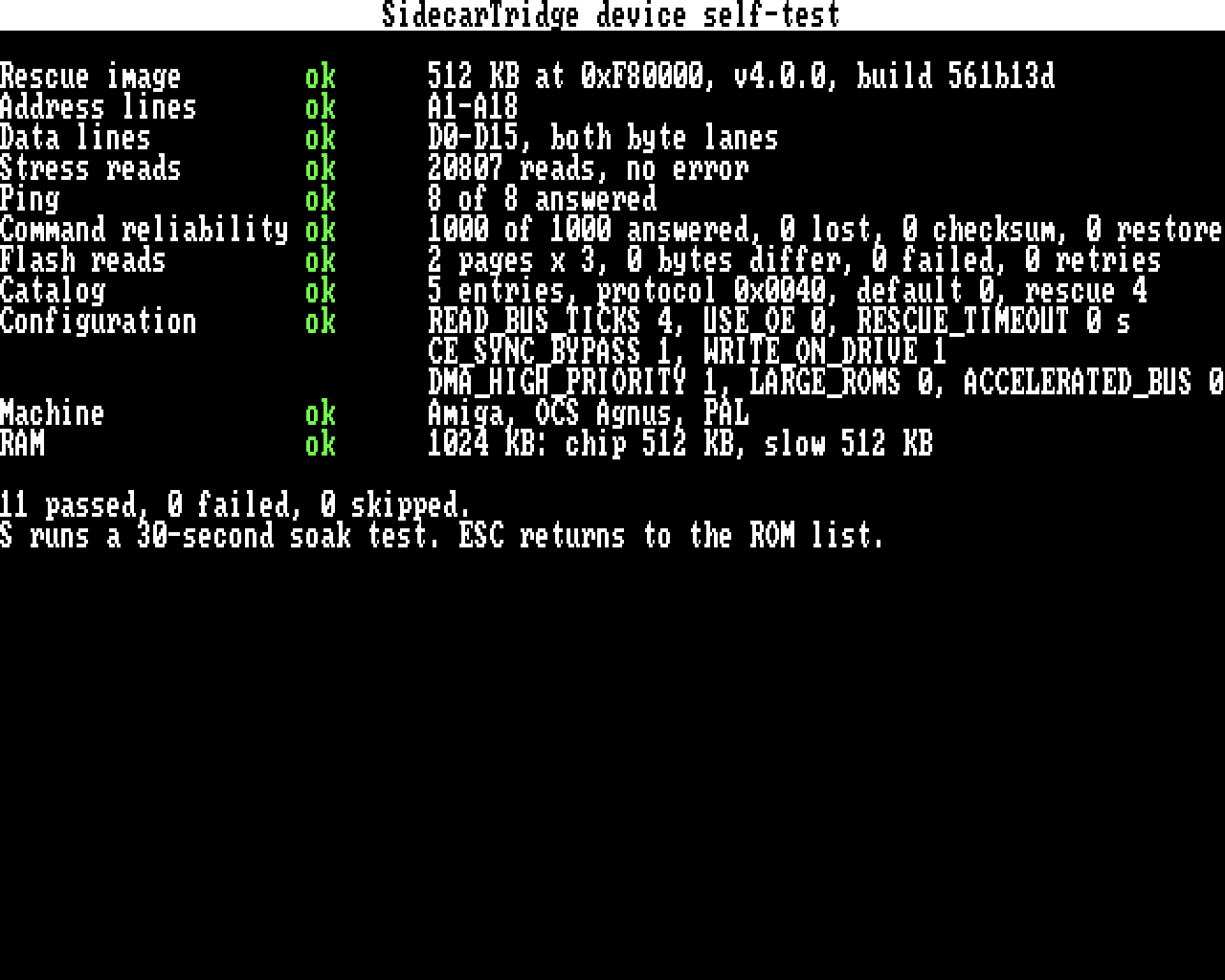
Each line says ok, FAIL or skipped (green, red and white on a colour monitor; all white on a monochrome one), then the details. On a working board every line is ok: 12 passed, 0 failed, 0 skipped on an Atari, and 11 passed on an Amiga, which has no monitor line.
| # | Line | What it checks | If it fails |
|---|---|---|---|
| 1 | Rescue image | Information: the image, where it runs, its version and build. | |
| 2 | Address lines | Every address line between the computer and the board: A1-A17 on the Atari, A1-A18 on the Amiga. | The lines named “stuck” or “wrong” have a bad contact between the computer’s ROM socket and the board. Check the seating and the pins. |
| 3 | Data lines | Every data line, D0 to D15, in both bytes. | A line stuck at 0 or 1, two lines shorted, or a whole byte missing. On boards with separate high and low ROM sockets, a missing byte points to one socket’s connection. |
| 4 | Stress reads | Thousands of random reads, compared with the image. | Errors name the lines most often wrong: a loose contact or a timing problem. Run the soak test. |
| 5 | Ping | That the board answers commands: 8 of 8. | No answer: the board does not run firmware v4.0.0, or is not well seated. |
| 6 | Command reliability | 1,000 more commands, all answered. | Commands lost: the same causes as above, or a noisy bus. Skipped when the ping got no answer. |
| 7 | Flash reads | The board’s settings and list of images, read 3 more times and compared. | A difference or a failed read. A retry that then succeeds is not a fault. Skipped when the ping got no answer. |
| 8 | Catalog | The board’s list of images: how many, which is the default and the rescue one, the protocol version (0x0040), and that every name is readable and every size between 4 KB and 1 MB. | The list stored on the board is wrong. Connect the board to your computer and eject the ROMEMUL drive: the eject rebuilds it. |
| 9 | Configuration | Information: the settings the board uses, from CONFIG.TXT. | |
| 10 | Machine | Information: the computer, as the test finds it. On the Atari: ST, Mega ST, STE or Mega STE. On the Amiga: its Agnus or Alice chip, PAL or NTSC. | |
| 11 | Monitor line | Atari only: the monitor-type signal, read 32 times. | “changing” points to the monitor cable or its connector. |
| 12 | RAM | Information: the memory found, by bank on the Atari, chip and slow memory on the Amiga. | Fast memory on an A2000 expansion card is not counted; that is expected. |
On an Amiga the screen is the same, without the monitor line:
The soak test
Press S on the self-test screen to run a 30-second soak test: random reads without a pause, with a line that counts them every second. It ends with ok and the number of reads, or a FAIL that names the lines most often wrong. ESC stops it early.
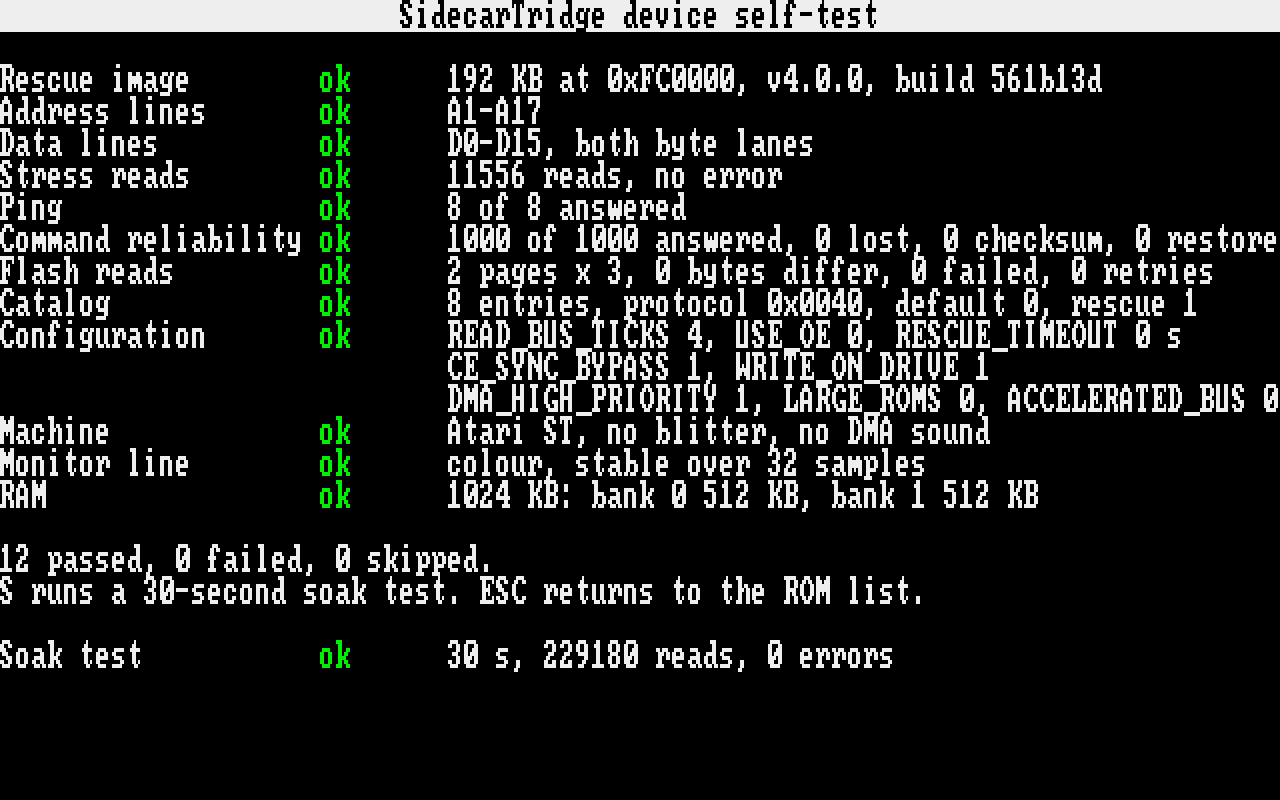
Press S to run it again, or ESC to go back to the list.
Screens that stop it
“The SidecarTridge does not answer commands”
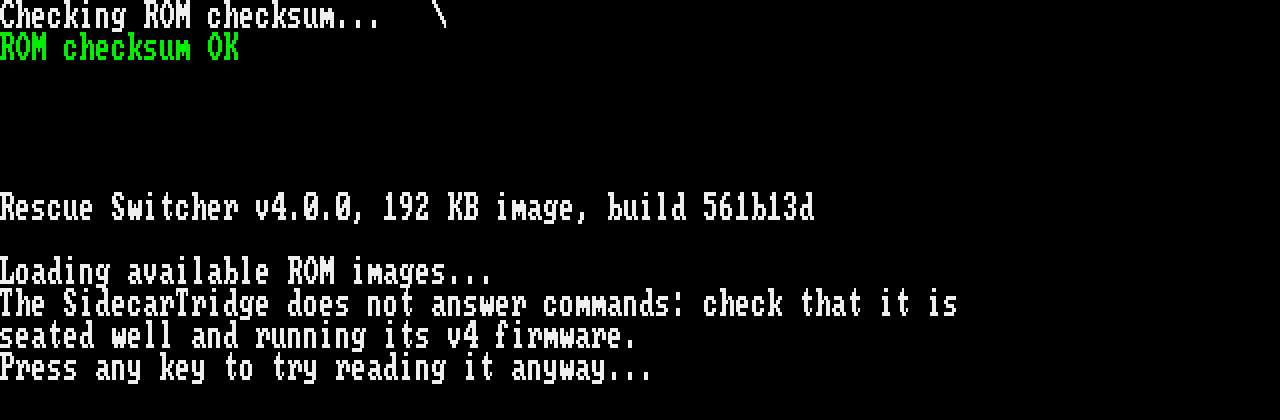
The board does not take the rescue switcher’s commands. Check that it is well seated and runs firmware v4.0.0. Any key tries to read the list anyway; if that fails too, it stops with “Error reading the flash page at address …”.
“not compatible”
- “This version of SWITCHER tool is not compatible with the firmware of the device.” is the rescue switcher 3.1.0 on a board with firmware v4.0.0: install the rescue switcher 4.0.0.
- “This rescue switcher is not compatible with the device’s firmware.” is the rescue switcher 4.0.0 on an older firmware: update the board to firmware v4.0.0. On an older firmware it may stop at “does not answer” first.
“No ROMs found”
The screen says “No ROMs found. Do you have a Sidecartrige device configured?”. The board’s list of images is empty. In practice this does not happen, since the rescue switcher is itself in the list.
After “Press any key to exit…” or “Exiting.”
The rescue switcher runs in place of the computer’s operating system, so there is nothing to exit to. After “Press any key to exit…” (the “not compatible” and “No ROMs found” screens), or after “Error reading the flash page at address … Exiting.”, the key leads nowhere: switch the computer off, fix the cause, and switch it on again.
Known issues
- On an Atari, a key pressed very soon after another can be lost. Press it again.
- If an Amiga does not start the image you chose, switch it off and on: it starts it then.
- The “No ROMs found” screen spells SidecarTridge “Sidecartrige”.
Previous: Firmware & Files (ROMEMUL) Main Next: Firmware API