Getting Started
v4.0.0
This guide sets up a board revision 3 (RP2350) with firmware v4.0.0: what you need, the ROMEMUL drive the board shows on your computer, how to copy TOS images to it, and how to install the firmware.
Is your board already running firmware v3.x? Read Upgrading to v4.0.0: it keeps your TOS images. Firmware v4.0.0 is not for board revisions 1 and 2 (the ones without a red power LED): follow the firmware v2.x guide for those.
Table of contents
Prerequisites
The SidecarTridge TOS Emulator kit
The kit includes:
- The SidecarTridge ROM Emulator board, soldered onto the carrier board for your Atari motherboard.
- The RESCUE cable and push button, to start the rescue ROM when you need it.
- (Optional) A USB-C cable, to connect the board to your computer.
- (Optional) A 3 1/2” floppy disk with the
SWITCHER.TOSprogram. The same program is on the board’sROMEMULdrive.
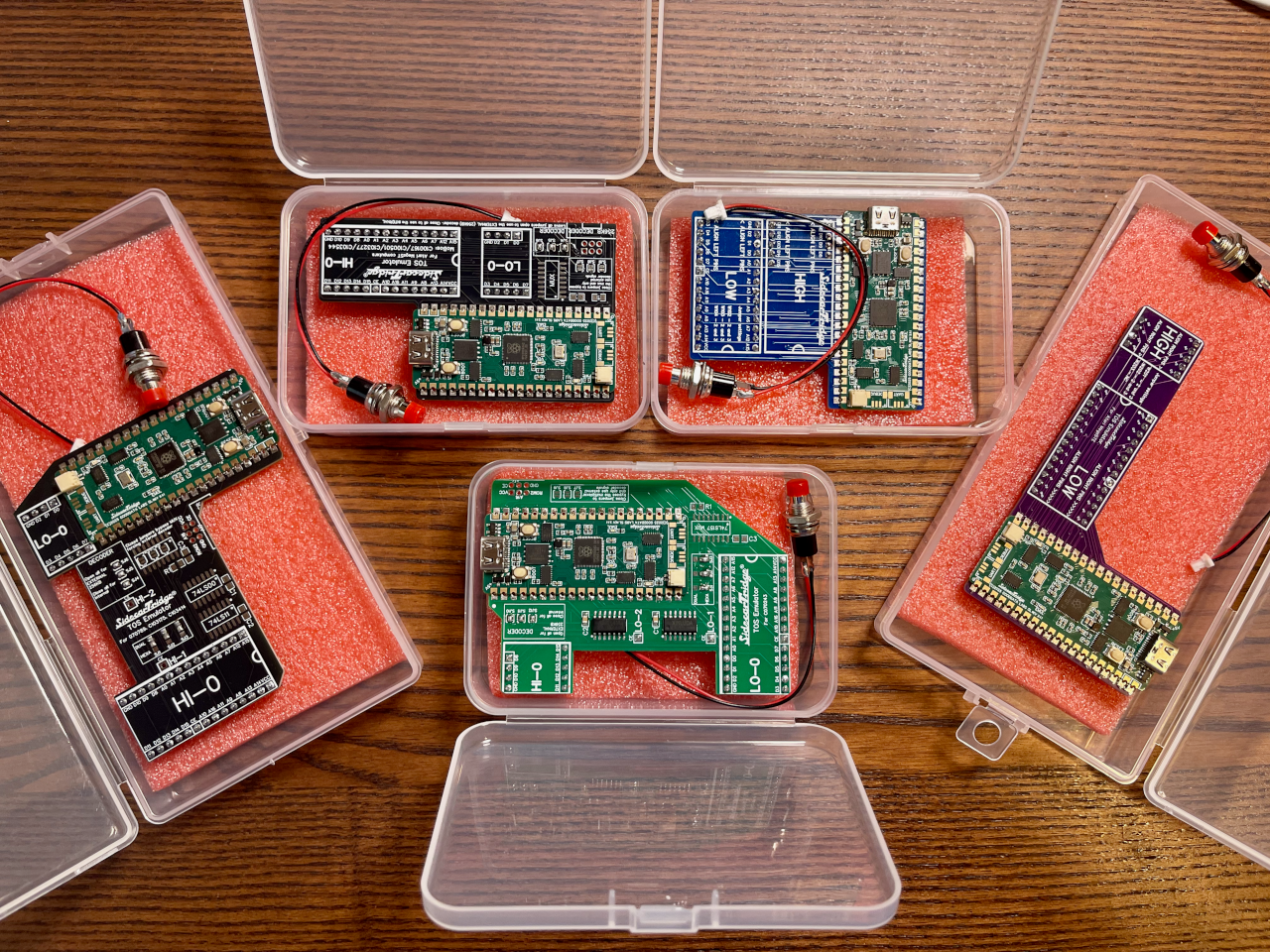
Check in Before You Buy that the kit matches your Atari motherboard.
Tools and equipment
- Phillips head screwdriver: to open the Atari case.
- Anti-static wrist strap: to avoid static discharges that could damage the electronics.
- Small container: for the screws and small parts.
- IC extractor tool: to lift the ROM chips out of their sockets without damaging them or the motherboard. A small flat-head screwdriver works too, used with care.
- Insulating tape: to avoid short circuits between the board and the motherboard.
- A computer with a USB port: Windows, macOS or Linux, to copy TOS images and to update the firmware.
- A USB-C cable that carries data. Many cables only charge; with one of those the board never shows its drive.
Software and files
- TOS images: the board comes with EmuTOS 1.4 ready to boot. The original Atari TOS images are copyrighted, so you bring your own: they can be found on sites such as Avtandil’s, and EmuTOS on the EmuTOS website. The Compatibility page lists the versions tested.
- SWITCHER.TOS 4.0.0: the program that lists, selects, uploads, renames and deletes TOS images from the Atari. It is on the board’s
ROMEMULdrive and on the downloads page. Firmware v4.0.0 needs SWITCHER 4.0.0: older SWITCHER versions do not work with it.
Unboxing and inspecting the kit
Check that every item listed above is in the box and in good condition. The board has three LEDs: red for power, green while it serves a ROM to the Atari, and orange while its drive is open on your computer. The User Guide explains every combination.
The ROMEMUL drive
As a rule of thumb, ALWAYS eject the ROMEMUL drive after changing anything on it. The board reads your changes when the drive is ejected, not before.
Connecting the board to your computer
The board has two jobs: it serves a TOS image to the Atari, or it shows its storage to your computer as a USB drive called ROMEMUL. It decides when it is powered on:
- If a computer talks to it on the USB cable during its first 2 seconds, it opens the
ROMEMULdrive and lights the orange LED. The Atari does not start while the drive is open. - Otherwise it serves the default TOS image to the Atari and lights the green LED.
So, to open the drive: with the Atari switched off, plug the board into your computer with the USB-C cable. A phone charger or a cable that only charges is not enough: the board then starts as it would inside the Atari.
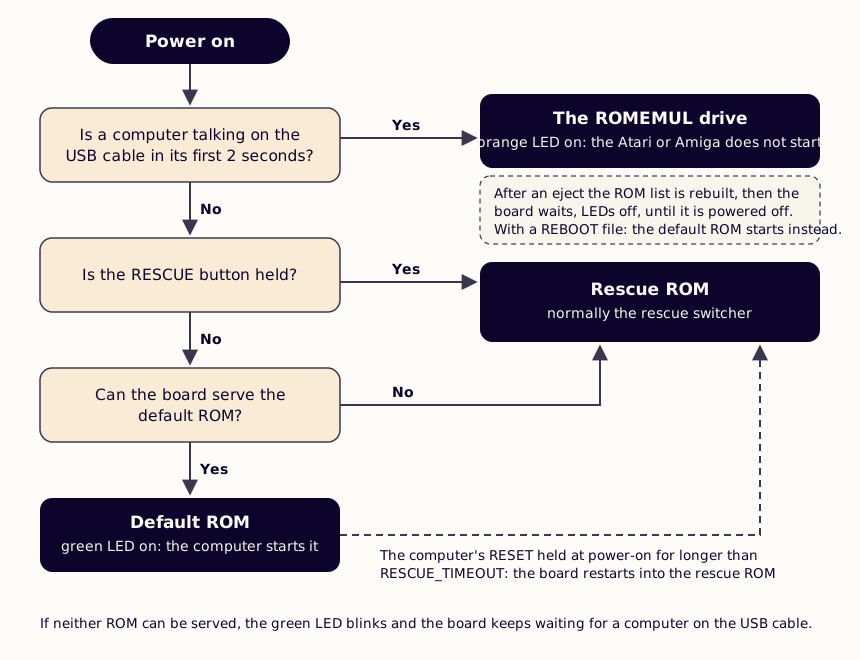
If the ROMEMUL drive does not appear, press the RESET button on the board with the cable plugged in: it starts again and looks for your computer. If it still does not appear, try another cable and read Troubleshooting.
What is on the drive
A new board, or one installed from a full firmware file, has these files:
INDEX.HTM: opens this documentation.INFO.TXT: the firmware installed on the board. The board writes it the first time it is connected to a computer.SWITCHER.TOS: the SWITCHER program. Copy it to your Atari (a floppy or its hard disk) to manage your TOS images from there. The User Guide explains how to use it.DEFAULT.TXT: the name of the TOS image the board starts with.RESCUE.TXT: the name of the rescue image, which starts when you hold the RESCUE button.EmuTOS 1.4.0 192KB - English UK - 50Hz.IMGon the ST and Mega ST kits, orEmuTOS 1.4.0 256KB - English UK - 50Hz.IMGon the STE and Mega STE kits: the default TOS image.RESCUE_SWITCHER_v4.0.0_192KB.imgorRESCUE_SWITCHER_v4.0.0_256KB.img: the rescue switcher, the rescue image. When you start it, it lets you choose any TOS image on the board. Read ROM Rescue Switcher.CONFIG.TXT: the board’s settings. You rarely need to change them; see Advanced Settings.
This is an example of INFO.TXT:
SidecarTridge ROM emulator. (C) 2024-26 GOODDATA LABS SL
Version: v4.0.0
Date: 2026-10-10 20:43:15
Mode: RELEASE
Microcontroller: RP2350-A2
Board variant: RP2350A
Board ID: e46358c8071c0c29
Flash size: 16777216 bytes
PSRAM: NO PSRAM found
The Version line is the firmware installed. Board variant: RP2350A is the board you have: the firmware files for it have rp2350a in their name.
Your computer may add hidden files and folders to the drive, with names starting with a dot (.). The board ignores them, and it never takes a file whose name starts with a dot or an underscore (_) for a TOS image. The drive also rounds file sizes up to the next 4 KB, so a size can look a little larger than the image.
Copying TOS images
The drive holds about 15.5 MB, room for many TOS images; the board lists up to 64. Keep a copy of your images in a folder on your computer, so you can always copy them again.
Collect your TOS images in a folder, for example
TOS Imageson your desktop.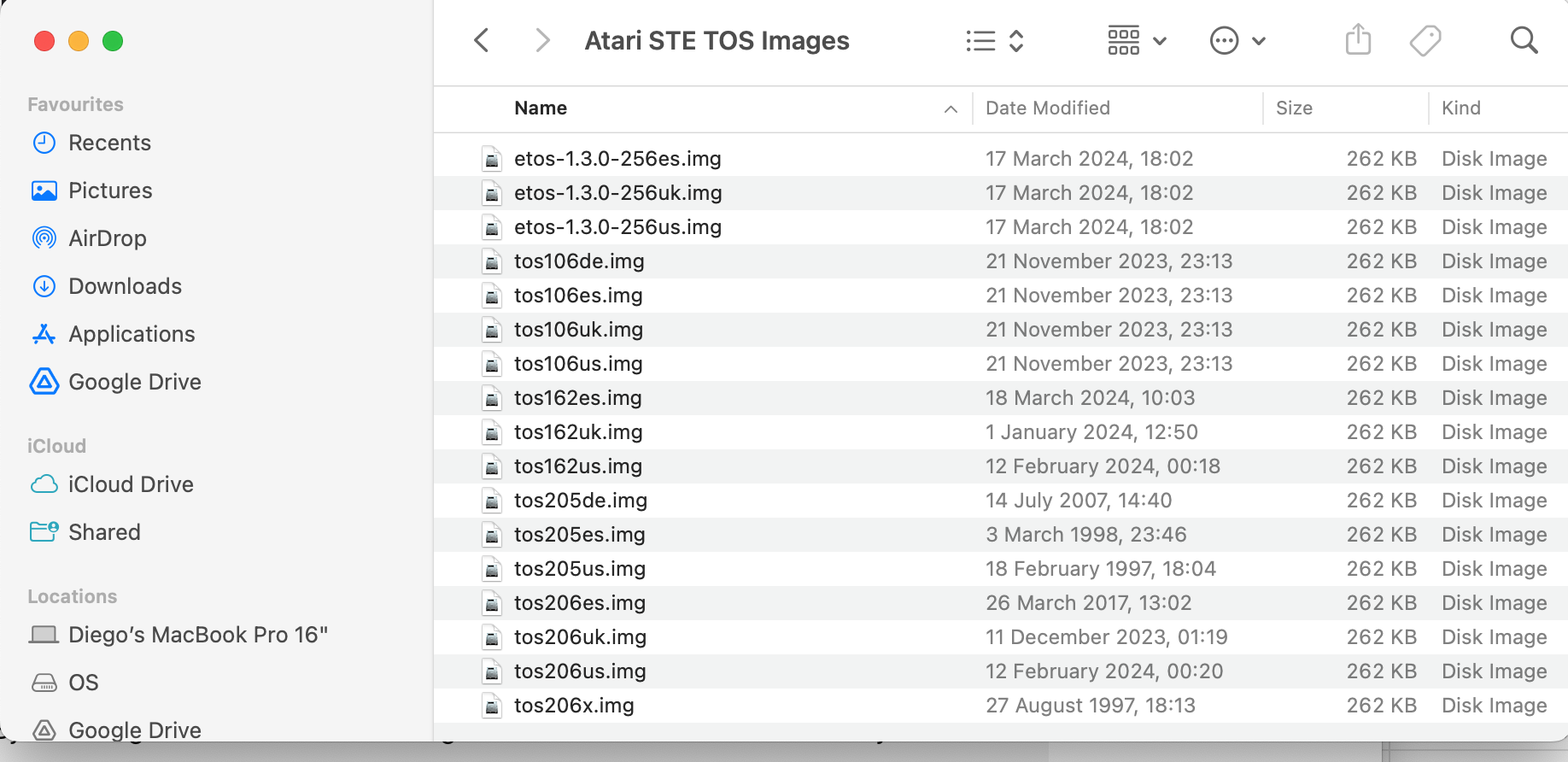
Give them names you can read, such as
TOS 1.04 - English UK - 50Hz.imginstead oftos104uk.img. The SWITCHER shows these names, sorted alphabetically, and names of up to 63 characters fit.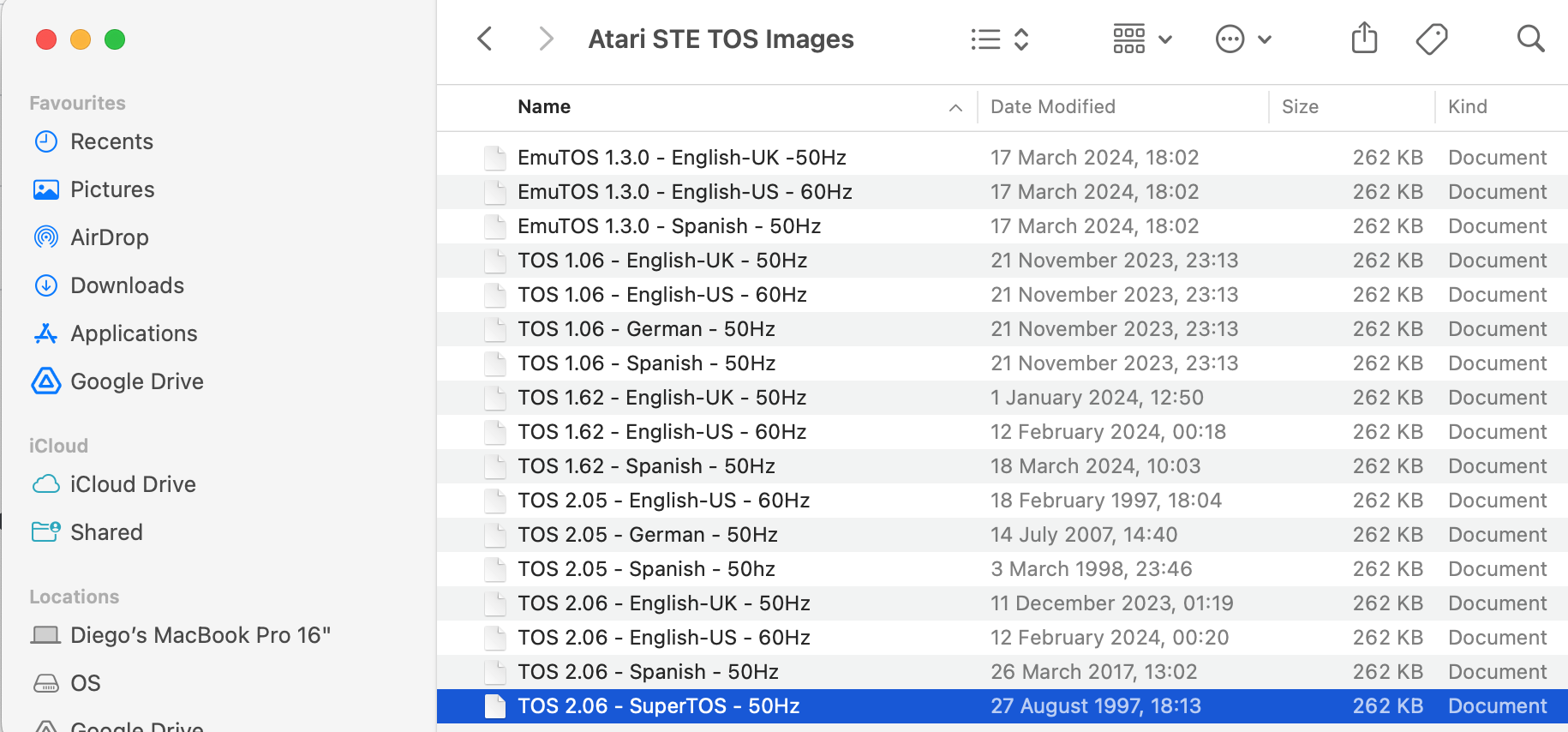
Copy them to the
ROMEMULdrive. Dragging them works on Windows, macOS and Linux. On macOS the Finder also copies hidden._files, which the board ignores; to avoid them, copy from the Terminal:cp -R /path/to/TOS\ Images/* /Volumes/ROMEMUL/On Linux the drive is usually mounted at
/media/<your user>/ROMEMUL/.Wait for the copy to finish, then eject the drive. Copying is slow by design: every block is written to the board’s memory before your computer is told it is done, about 25 KB per second. A 192 KB image takes about 8 seconds, a 256 KB one about 10.
When you eject the drive, the board rebuilds its list of TOS images. Then it waits, with the green and orange LEDs off, until you unplug it.
A TOS image for the ST and Mega ST is 192 KB; for the STE and Mega STE it is 256 KB. A 256 KB image does not start on an ST motherboard, unless it has the 256 KB decoder.
The default and the rescue image
The board knows two of your TOS images by name:
- The default image starts when you switch the Atari on. A new board starts EmuTOS 1.4.
- The rescue image starts when you hold the RESCUE button while switching the Atari on. A new board has the rescue switcher here, and it is the best choice: from it you can start any of your images, even when the default one does not boot.
To change the default image, use the SWITCHER on the Atari: it is the easy way. You can also write the image’s name in DEFAULT.TXT on the drive, exactly as the file is called, extension included, and eject the drive. For example:
TOS 2.06 - English UK - 50Hz.img
The rescue image can only be changed in RESCUE.TXT, the same way. Keep the rescue switcher there unless you have a reason not to.
If DEFAULT.TXT or RESCUE.TXT names a file that is not on the drive, the board uses the first image of the list instead, in alphabetical order. If DEFAULT.TXT or RESCUE.TXT is missing, the board writes a new one naming that image.
Magic file names
Two file (or folder) names make the board do something when you eject the drive. The board deletes the file once it has acted on it.
REBOOT: after the eject, the board starts serving the default TOS image straight away, with the USB cable still plugged in. Use it when the board stays connected to your computer, for example with the cable led out of the Atari’s case: createREBOOT, eject, then switch the Atari on.RESET: after the eject, the board enters BOOTSEL mode, ready for a new firmware (see below).
v4.0.0
Before firmware v4.0.0, REBOOT opened the drive again instead.
Firmware installation
Your board came with its firmware installed. New versions are published on the downloads page.
Which file
There are two kinds of firmware file for board revision 3:
| File | What it does |
|---|---|
sidecartridge-tos-rp2350a-v4.0.0.uf2 | Replaces the firmware only. Your TOS images, DEFAULT.TXT, RESCUE.TXT, CONFIG.TXT and the rest of the drive stay as they are. |
sidecartridge-tos-rp2350a-emutos-192k-full-v4.0.0.uf2 | Replaces everything: the firmware and a new drive with EmuTOS 1.4 192 KB, the rescue switcher, SWITCHER.TOS and the default settings. For the ST and Mega ST. |
sidecartridge-tos-rp2350a-emutos-256k-full-v4.0.0.uf2 | The same, with EmuTOS 1.4 256 KB, for the STE and Mega STE (and an ST with the 256 KB decoder). |
A full file erases every TOS image on the board. Copy them to your computer first.
Use the files with rp2350a in their name. The ones with rp2350b are for a different board: if one is installed by mistake, the Atari gets no TOS and the green and orange LEDs blink together. Install the right file the same way and the board is back.
Coming from firmware v3.x, follow Upgrading to v4.0.0: after the update file, a few files on the drive must be replaced too.
The installed version
Open INFO.TXT on the drive: its Version line is the firmware installed.
The board writes INFO.TXT only when the drive has none. After an update it still shows the old version: delete INFO.TXT, eject the drive, and plug the board in again to get a new one.
BOOTSEL mode
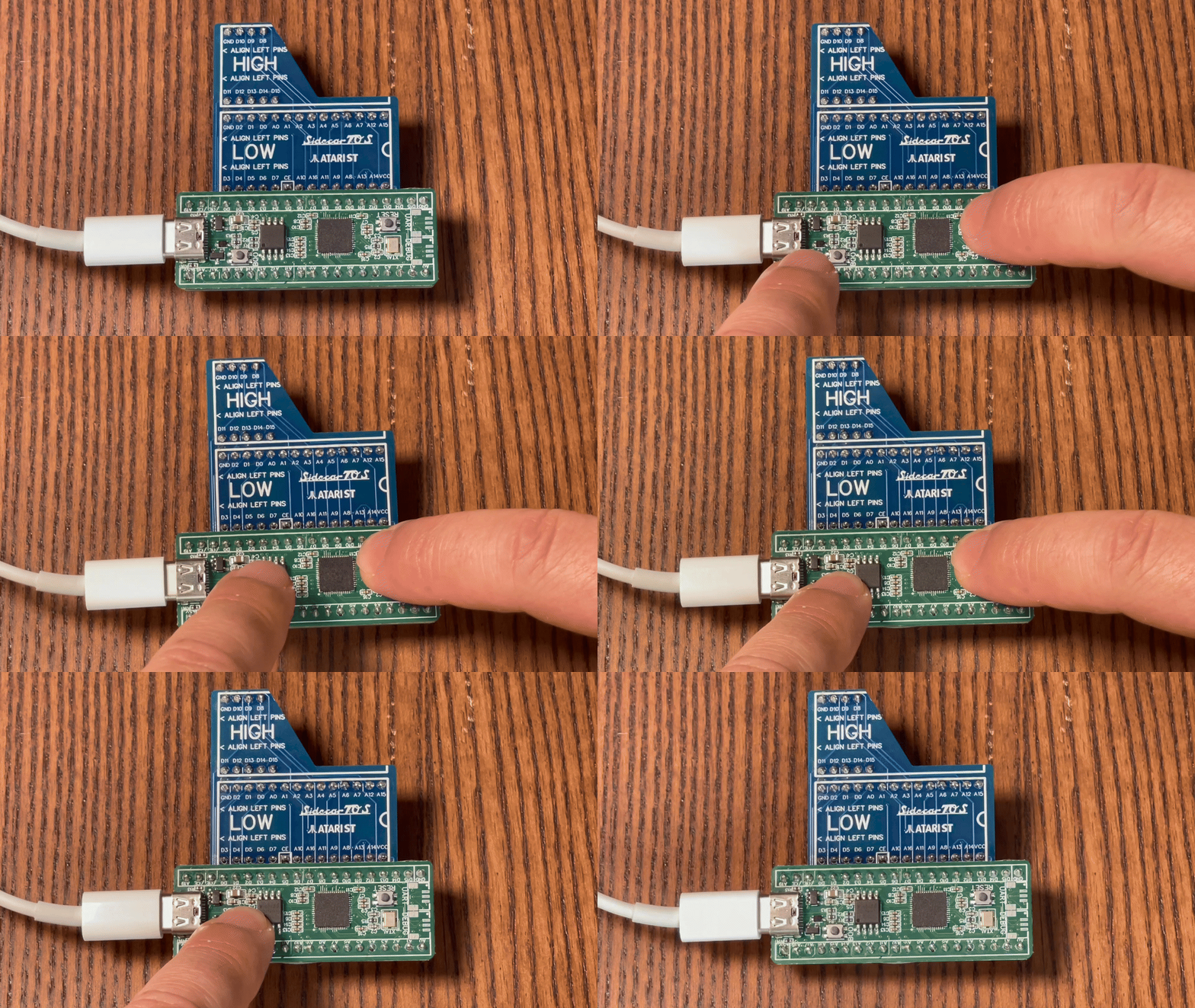
To install a firmware, the board must be in BOOTSEL mode, where it shows a drive called RP2350 instead of ROMEMUL. There are three ways in:
- With the board connected to your computer: hold the
BOOTbutton, press and releaseRESET, then releaseBOOT. - With the board unplugged: hold the
BOOTbutton, plug in the USB cable, then releaseBOOT. - From the
ROMEMULdrive: create a file calledRESETon it and eject the drive.
Installing from your browser
With Chrome, Edge or another Chromium-based browser, you can install the firmware from webflash.sidecartridge.com, with nothing else to install. Connect the board, put it in BOOTSEL mode and follow the page, choosing the SidecarTridge TOS file for your board from the list above.
Installing by copying the file
- Download the file from the downloads page.
- Put the board in BOOTSEL mode: the
RP2350drive appears. - Copy the
.uf2file onto theRP2350drive.
When the copy is complete, the RP2350 drive disappears and the board starts with the new firmware. A full file is much larger than an update file and takes longer to copy. If the board does not start once the copy has finished, press RESET on it.