Dragon’s Lair
Source code CHANGELOG Report BUG v1.0.0
1983. A coin-op cabinet with a laserdisc player inside, and a full Don Bluth cartoon you could play. Dirk the Daring, Princess Daphne in her glass bubble, Singe the dragon on his pile of gold. Nobody had seen anything like it in an arcade, and no home computer of the day could dream of running it.
Now your Atari ST can. With a SidecarTridge Multi-device in the cartridge slot, Dragon’s Lair runs on an Atari ST, STE, Mega ST or Mega STE: the whole cartoon full screen at 25 pictures a second, with its sound, played on the joystick or the keyboard by the arcade’s own rules. The Raspberry Pi Pico in the cartridge plays the game’s clips from the microSD card, each picture 320×200 in 16 colours of its own, picked from the STE’s 4,096 colours or the ST’s 512. The sound comes out of the DMA sound chip on an STE or a Mega STE, and out of the YM2149 on the others. The game’s logic comes from DirkSimple.
Grab your sword. The castle is waiting.
See Dragon’s Lair in action:
Bring your own disc. None of the game’s clips or sound is included in the app or its source code. You need your own copy of the PC CD-ROM Dragon’s Lair CD-ROM (Version 3.1) by Digital Leisure, as an ISO 9660 image (DL_CDROM_V31.ISO, about 600 MB). It is the only edition that works. If your own disc no longer reads after all these years, the Internet Archive keeps a copy for preservation: look for “Dragon’s Lair CD-ROM (Version 3.1)” on archive.org.
Table of contents
🛡️ What you need
- The game’s PC CD-ROM, as an ISO 9660 image: Dragon’s Lair CD-ROM (Version 3.1) by Digital Leisure (see above).
- A SidecarTridge Multi-device with Dragon’s Lair installed from the app store, and a microSD card with room for the clips: 535 MB for an STE or a Mega STE, 546 MB for an ST or a Mega ST, both if the card goes from one machine to the other.
- An Atari ST, STE, Mega ST or Mega STE with a colour monitor, in low or medium resolution. In high resolution the app returns to GEM with a message.
- The keyboard, or a joystick in the joystick port.
🚀 Installation
- Launch the Booster App on your SidecarTridge Multi-device.
- Open the Booster web interface.
- In the Apps tab, select “Dragon’s Lair” from the list of available apps.
- Click “Download” to install the app to your SidecarTridge’s microSD card.
- Once installed, select the app and click “Launch” to activate it.
Then make the clips (next section), switch the Atari on, and the adventure begins.
💿 The clips on the card
The game is the CD-ROM’s 194 video clips, converted once for the machine they will play on: 320 by 200 pixels in 16 colours chosen for each picture, at 25 pictures a second, with their sound. The converted clips live in the card’s DLAIR folder: DLAIR/STE for an STE or a Mega STE, and DLAIR/ST for an ST or a Mega ST. There are two ways to make them.
On a computer, in a few minutes
Open the converter at https://md-dragons-lair.sidecartridge.com in a desktop browser, with the card in the computer:
- Choose the CD-ROM image. The page checks that it is the right one.
- Tick the machines: STE, ST, or both.
- Choose where the files go: straight onto the card (choose the card, or its
DLAIRfolder; Chrome and Edge can do this), or aDLAIR.zipto unzip at the top of the card (any browser). - Convert. The page uses your computer’s cores: a few minutes for both sets on a recent computer.
Nothing is uploaded: the image stays on your computer.
On the cartridge, in about an hour
Copy the image into the card’s DLAIR folder and switch the Atari on. At every start the cartridge checks the clips for the machine it is plugged into and converts the missing ones. The first time that is the whole game: about an hour (56 minutes on a Mega STE). The screen shows the clip being converted, the progress of the whole game and the time left, so the Atari can be left alone. Space stops it, and the next start carries on where it stopped. The app looks for DL_CDROM_V31.ISO first, then for any .ISO in the folder that holds the game.
Once a set is complete the image is no longer needed: the app plays the clips without it.
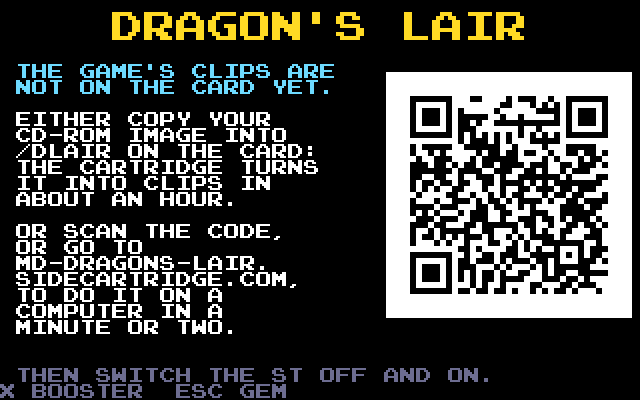
No clips yet
With neither the clips nor the image on the card, the start screen says so and shows a QR code. It opens the web converter, already set for the machine the cartridge is plugged into. Convert the clips, put the card back, and switch the Atari off and on.
🏰 Switching on
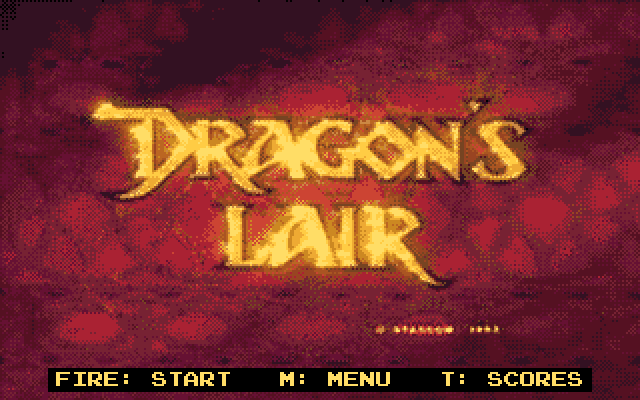
At every start the app checks the clips on the card for a few seconds. Then the attract movie plays with its sound, just as the arcade cabinet did between games.
| Key | In the attract movie |
|---|---|
| Fire, Space or Return | Start a game |
| M | The start menu |
| T | The high scores |
| U / D | Volume up or down |
| Esc | Back to GEM |
After the movie the start menu comes up by itself. Left alone for 20 seconds, it goes back to the movie.
📜 The start menu
Every option has a key of its own and is saved on the cartridge. Fire, Space or Return starts a game.
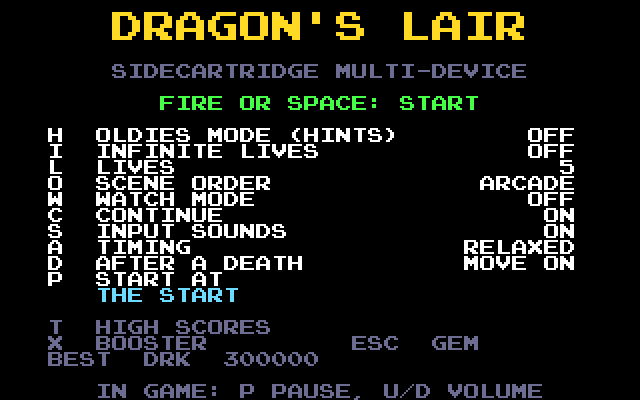
| Key | Option | What it does |
|---|---|---|
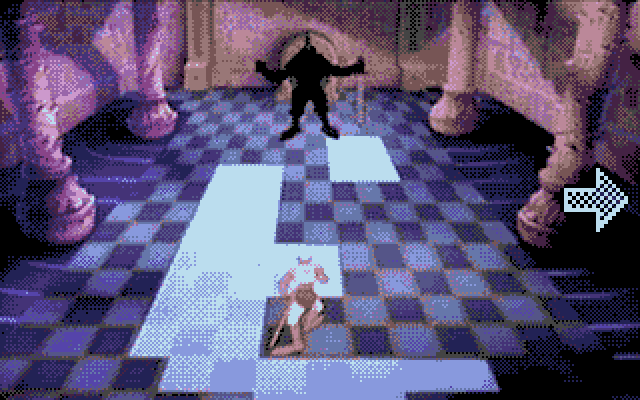
| H | Oldies mode | Draws the move to make over the picture: an arrow at the edge of the screen for a direction, at a corner for a diagonal, the sword in the middle. An outline while the move is still to come, filled while it can be pressed. |
| I | Infinite lives | Dirk never runs out of lives. |
| L | Lives | The lives a game starts with, 1 to 5. |
| O | Scene order | Arcade: a scene of each row at random, as the arcade does. Fixed: always the same order. |
| W | Watch mode | The game plays itself, every move right. Any key, or fire, goes back to the menu. |
| C | Continue | After game over, ten seconds to carry on with the game, the lives back and the score at 0. |
| S | Input sounds | A blip when a move is taken, a buzz for a move pressed when none is expected. |
| A | Timing | Relaxed (the default): a move pressed up to a quarter of a second after its moment still counts. Arcade: the arcade’s exact moments. |
| D | After a death | Move on: the next scene, as the arcade does; the scene you died in comes back later. Retry: the same scene again until you pass it or run out of lives. |
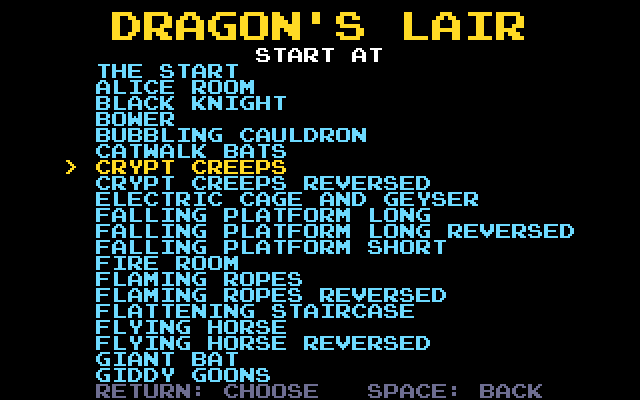
| P | Start at | The scene a game starts at, from the list below. |
| T | High scores | The table of the ten best. |
| X | Booster | Back to the Multi-device’s menu (the Atari resets into it). |
| Esc | GEM | Back to the desktop, from the menu or anywhere in the game. |
Start at lists the start and every scene, including the reversed ones (the arcade’s mirrored rooms). Up and Down move, Left and Right turn a page, Return chooses, and Space goes back without changing anything.
⚔️ Playing
Dirk follows the joystick in the joystick port (the mouse port is not used) or the cursor keys, and swings his sword with fire or Space. Two directions at once make a diagonal, on the stick or on the keys.
Each scene is a short cartoon. At each danger there is a moment to move: the right direction, or the sword, while it lasts, and Dirk lives to fight on. A wrong one, or none at all, and he dies. A move pressed too early is ignored, so pressing again is fine. A few dangers are about timing itself, such as the jumps on the falling platform: the right move at the wrong moment is a death there, exactly as in the arcade.
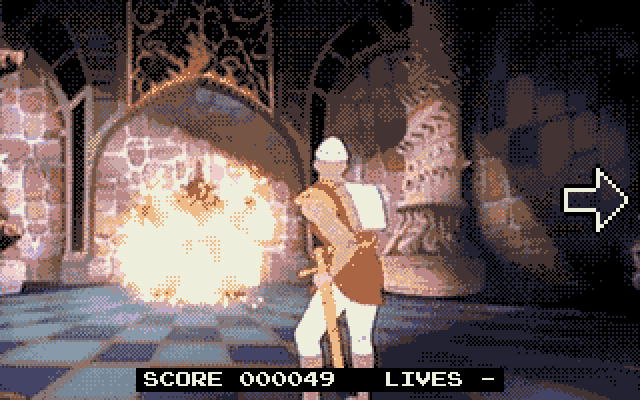
At the start of each scene, the score and the lives show for three seconds:
With oldies mode on, the move to make is drawn over the picture. Here, in the robot knight’s room, the arrow says right, and it is filled because now is the moment:
| Key | In a game |
|---|---|
| Joystick, or the cursor keys | The directions |
| Fire, or Space | The sword |
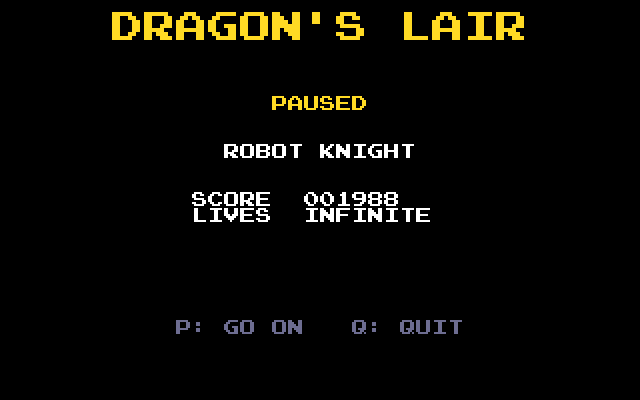
| P | Pause: the scene, the score and the lives (P goes on, Q quits to the menu) |
| U / D | Volume up or down, from -18 to +18 dB, kept for the next time |
| Esc | Back to GEM |
The arcade’s own secret works too: hold up and left as the game starts, and Dirk has infinite lives.
The scenes come in thirteen rows, a scene of each row in turn, three times through. The scenes where Dirk died come back before the last one: the dragon’s lair itself. Rescue Princess Daphne to win.
🏆 Game over, the continue and the high scores
When the last life is lost, the scene’s game over plays. With Continue on, ten seconds count down: fire or Space carries on with the game, with the lives back and the score at 0 (with retry on, from the scene that was lost).
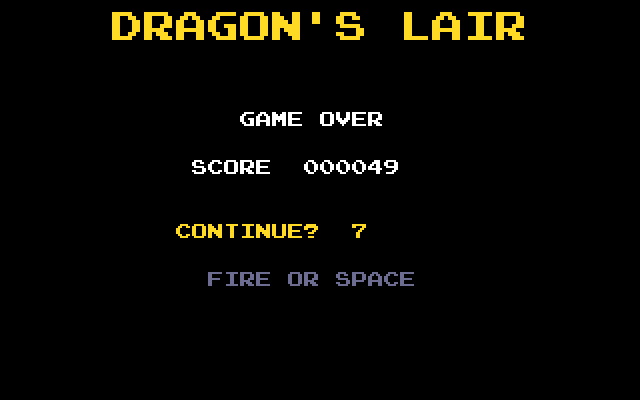
A score among the ten best asks for your initials: up and down change a letter, left and right move between them, and fire or Return ends. The table is kept on the cartridge. T shows it from the attract movie and the menu, and it also shows by itself after a game.
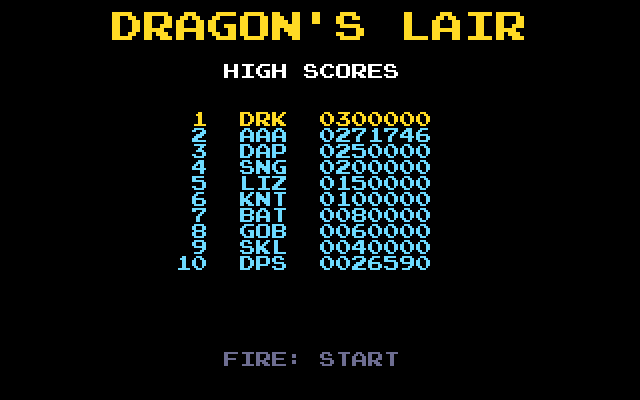
Games in watch mode do not enter the table.
🧰 Troubleshooting
- The Atari starts GEM without the game. Switch it off and on again: the cartridge must be ready when the Atari looks for it. In high resolution the app returns to GEM with a message: switch to low or medium resolution.
- The screen asks for the clips, or says they are for an older version. The clips are missing, or were made by an older converter. Make them again (see The clips on the card), or leave the image on the card and let the cartridge convert what is needed.
- The screen says NO SD CARD. Put the card in the Multi-device and switch the Atari off and on.
- The screen says some clips are not converted yet. A conversion was stopped, or a clip failed (for example, a full card): C converts the missing ones, or the next start does.
- The joystick does nothing. It must be in the joystick port, not the mouse port.
- A scene seems impossible. Try oldies mode (H) to see the moves, the relaxed timing (A), retry (D) to practise a scene, or start at it directly (P).
- The card fills up while converting. A set takes 535 MB (STE) or 546 MB (ST), and the image 596 MB. Once a set is complete, the image can go.
- The cartridge’s SELECT button restarts the cartridge with a short press (then reset the Atari). Held for 10 seconds, it is a factory reset of the Multi-device’s settings.
- Back to the Multi-device’s menu: X in the start menu, or the SELECT button.
🙏 Acknowledgements
This app stands on the shoulders of others, with thanks:
- DirkSimple by Ryan C. Gordon (zlib licence): the game’s logic, its scenes, sequences, move windows, deaths and points, re-created from the original arcade ROM’s data.
- SNES Super Dragon’s Lair Arcade by Chad Doebelin (MIT licence): its laserdisc segment table, used to find the laserdisc frames in the CD-ROM’s clips.
- pl_mpeg by Dominic Szablewski (MIT licence): the MPEG-1 video and MP2 audio decoding tables.
- QR Code generator by Project Nayuki (MIT licence): the QR code on the screen without clips.
Dragon’s Lair itself (Cinematronics, 1983, animated by Don Bluth) is not part of this project: the app plays the clips of the player’s own copy of the CD-ROM.
🛠️ Setting Up the Development Environment
This app is built on the md-framebuffer-template, a variant of the SidecarTridge Multi-device Microfirmware App Template. Build instructions are in the repository’s README. For the Multi-device’s programming documentation, see the Programming Guide.
📄 License
This project is licensed under the GNU General Public License v3.0. See the LICENSE file for full terms.
🤝 Contributing
Made with ❤️ by SidecarTridge