User Guide
v4.0.0
Day-to-day use of the SidecarTridge Kickstart emulator with firmware v4.0.0: what the LEDs say, how to choose and manage your Kickstart and other ROM images from the Amiga with the SWITCHER, and how to recover with the rescue switcher when a ROM image does not start.
Table of contents
Switching on
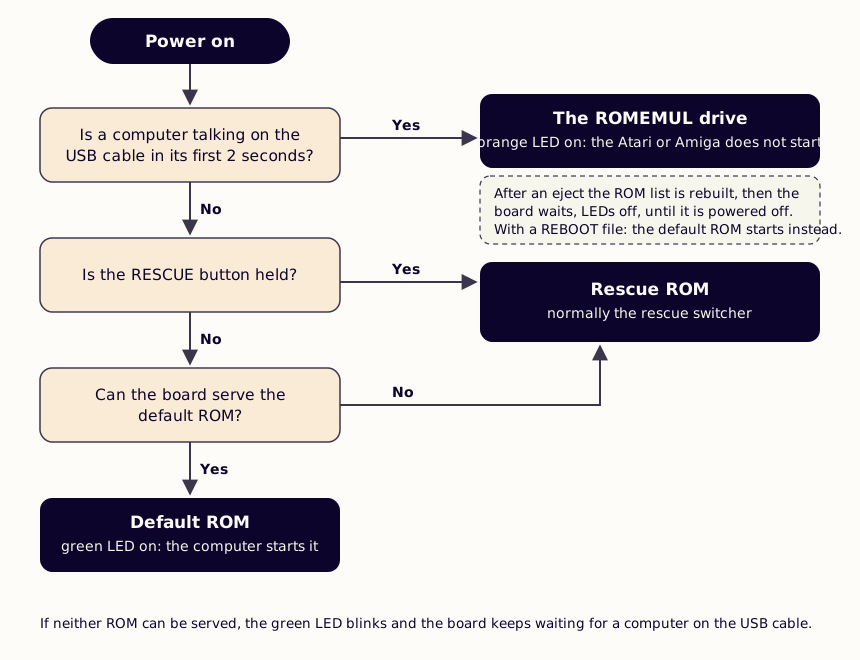
Switch the Amiga on as usual. The board starts the default ROM image, and the Amiga boots it as if it were its own Kickstart chip. A new board starts DiagROM 1.3 (Diagnosing your Amiga with DIAGROM).
If the board is connected to a computer by USB, it shows its ROMEMUL drive instead, and the Amiga does not start: unplug the USB cable first. The board only looks for a computer on the cable when it is powered on, so plugging the cable in later, with the Amiga running, does nothing.
The LEDs
The board has three LEDs: red, green and orange.
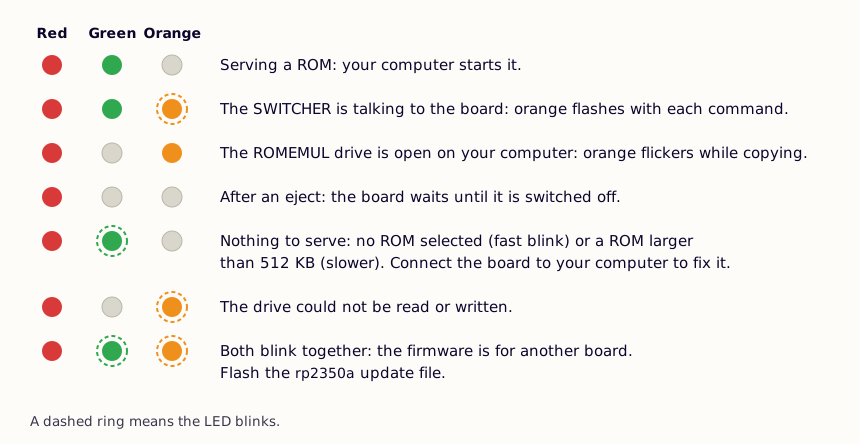
- Red: the board has power, from the Amiga or from the USB cable.
- Green: the board is serving a ROM image to the Amiga.
- Orange: the
ROMEMULdrive is open on your computer; it flickers while files are copied. With the Amiga running, it flashes briefly whenever the SWITCHER talks to the board. - Green blinking alone: the board has nothing it can serve: no ROM image chosen, or one larger than 512 KB, and no usable rescue image either. Connect it to your computer and check
DEFAULT.TXTandRESCUE.TXT. - Green and orange blinking together: the firmware installed is for another board. Install the
rp2350aupdate file again (Firmware installation).
The SWITCHER
The SWITCHER manages your ROM images from the Amiga: it lists them, sets the default one, and uploads, renames and deletes images. It is in the AMIGA folder of the board’s ROMEMUL drive and on the downloads page, in three forms:
| File | When to use it |
|---|---|
SWITCHER.ADF | A bootable floppy disk image. Write it to a floppy disk or put it on a Gotek, and boot the Amiga from it: it starts the SWITCHER. Works with Kickstart 1.3 and later. This is the one most people want. |
SWITCHER | The same program on its own. Copy it to your hard disk or a Workbench disk, and run it from the Shell. Kickstart 1.3 and later. |
SWITCHER.ST | An Atari-format floppy disk image, for an Amiga that boots EmuTOS from the board. EmuTOS reads Atari floppies: open AMIGA.DIR and run AMIGA.TOS. |
It needs SWITCHER 4.0.0 with firmware v4.0.0: an older SWITCHER stops with a “not compatible” message.
The list of ROM images
The SWITCHER opens a window with the list of the ROM images on the board, in alphabetical order, 10 to a page.
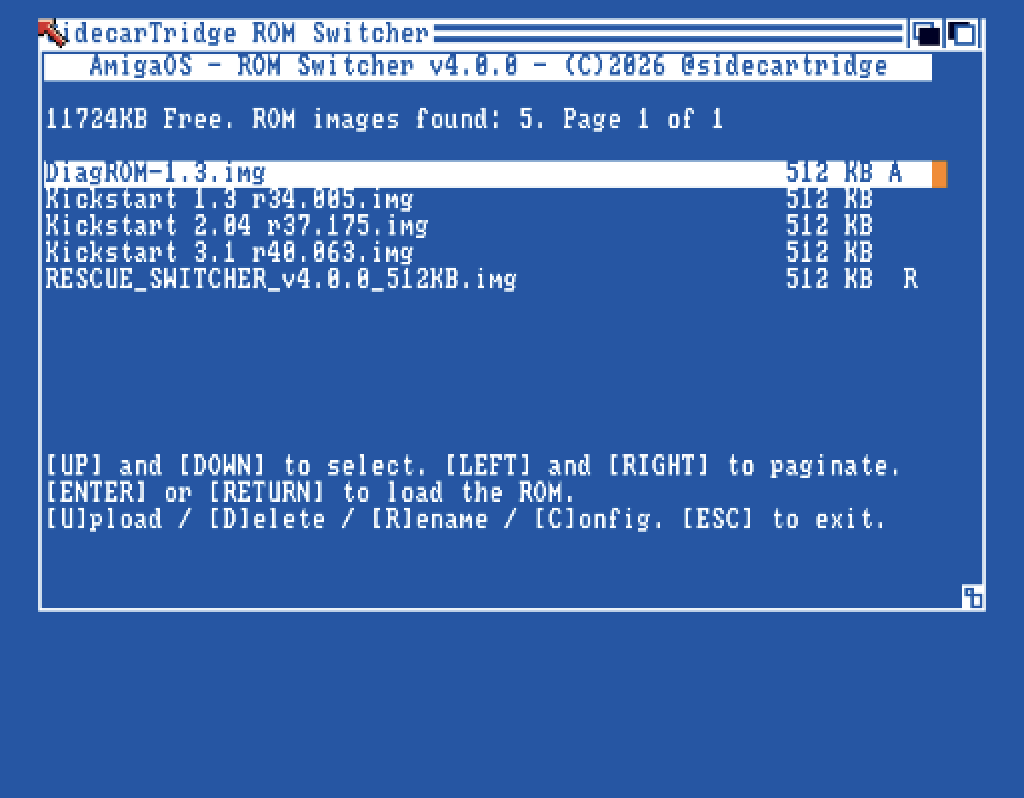
- The first line shows the free space on the board, how many images there are, and the page.
- Each row shows the image’s name and size, and a letter:
- A marks the active image: the default one, which starts when you switch the Amiga on.
- R marks the rescue image, which starts when you hold the RESCUE button.
The keys:
| Key | What it does |
|---|---|
UP, DOWN | Move through the list |
LEFT, RIGHT | Previous and next page |
RETURN or ENTER | Make the selected image the default one |
U | Upload an image from the Amiga’s disks |
D | Delete the selected image |
R | Rename the selected image |
C | Show the board’s settings |
ESC | Leave the SWITCHER |
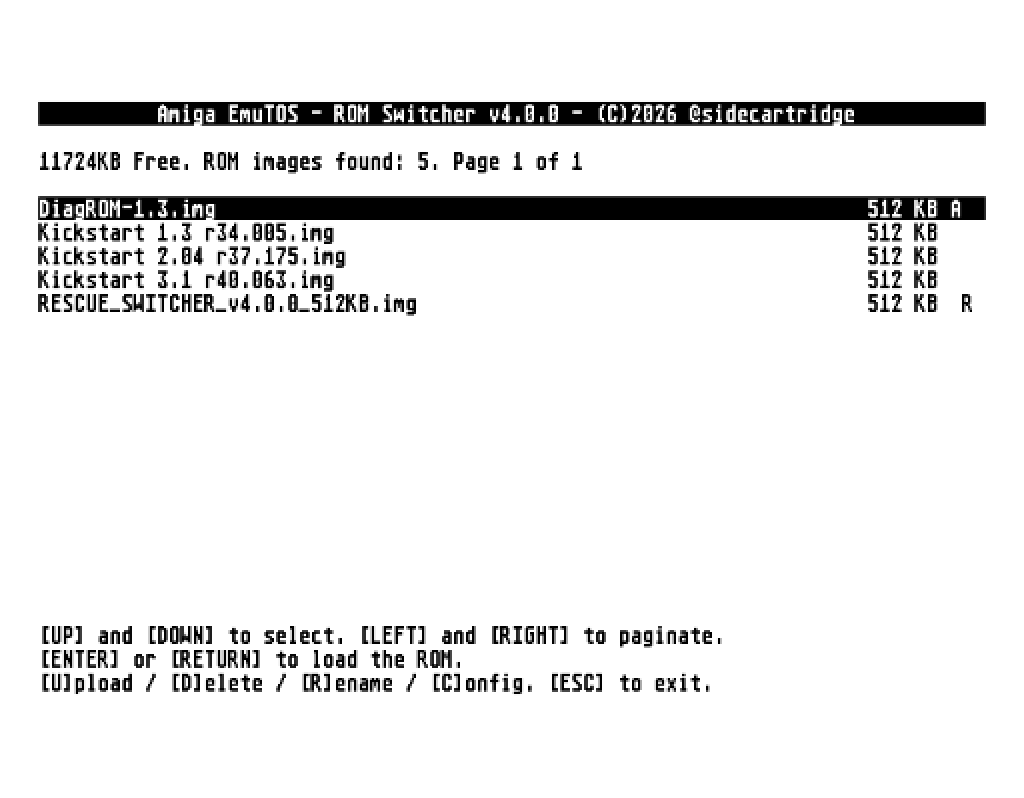
Under EmuTOS the SWITCHER looks like the Atari one, with the same keys:
Select the default ROM image
Move to the image you want and press RETURN. The SWITCHER asks for confirmation; press any key to confirm, or ESC to go back. It saves the new default image on the board, then asks you to restart the Amiga:
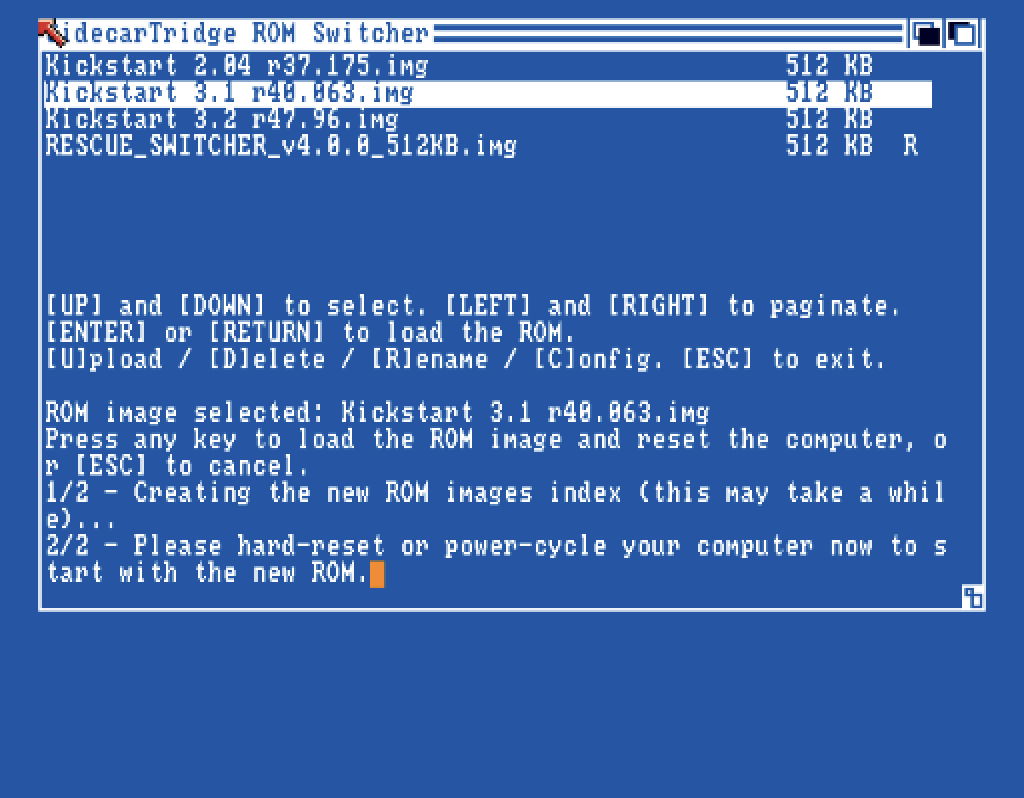
The Amiga cannot restart itself into a new Kickstart, so reset it by hand: switch it off and on, or hold Ctrl and both Amiga keys. If it still starts the old ROM after the keyboard reset, switch it off and on. It starts the new ROM image, and does so every time you switch it on from then on. The SWITCHER also writes the image’s name in DEFAULT.TXT, so the choice stays when you use the ROMEMUL drive.
Upload a ROM image
You can add a ROM image to the board from the Amiga’s own floppy or hard disk, without a computer or opening the case.
The SWITCHER uploads a file of any size, but the board only starts images of exactly 512 KB (524288 bytes). Double a 256 KB Kickstart to 512 KB on your computer first (ROM image size).
Press
U. A file browser shows the Amiga’s volumes.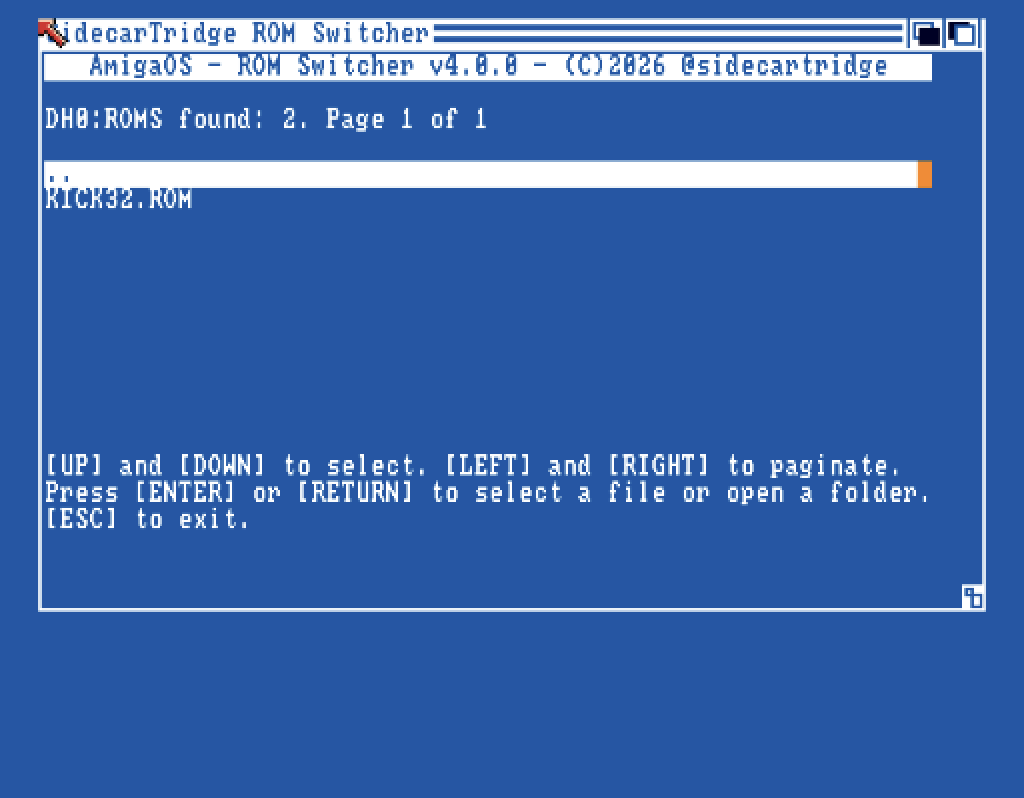
Choose the image and press
RETURN. The SWITCHER copies it to the board in five steps (the name, the size, the copy, a check of every byte, and a new list), showing its progress: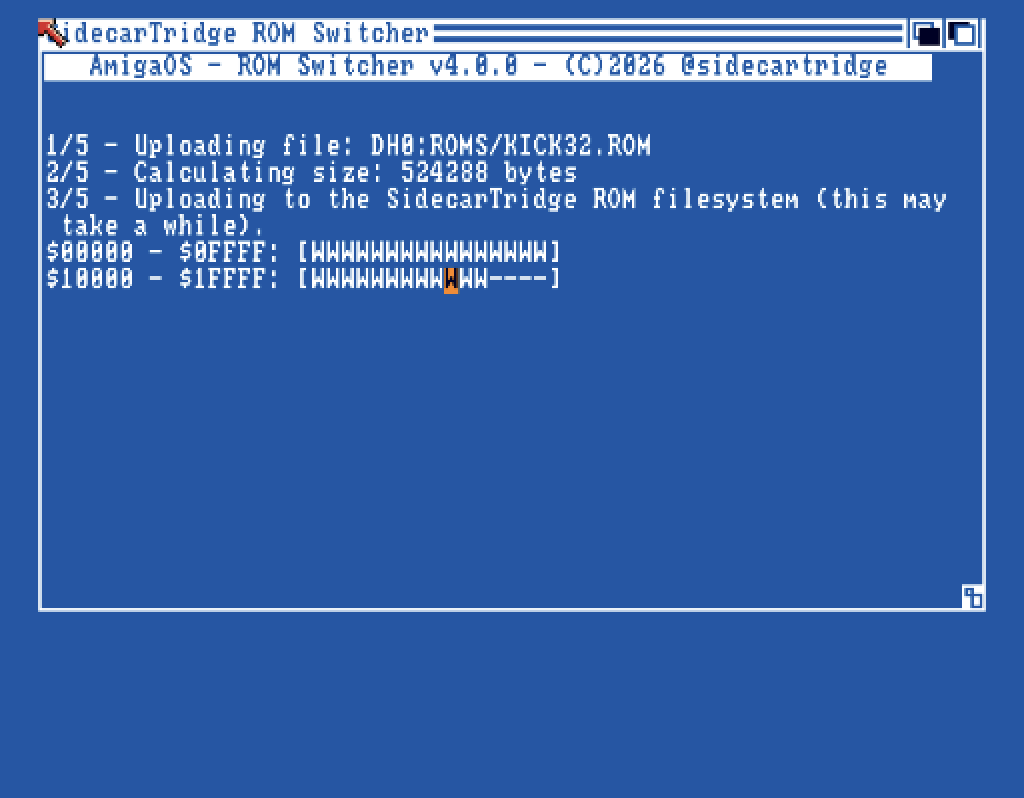
The new image appears in the list, ready to select.
Do not switch the Amiga off while an image is uploading, being deleted or renamed: the board’s storage could be left damaged, and fixing it means a full firmware file.
- The image keeps the file’s name. Rename it afterwards to give it a readable name.
- An image larger than the free space is refused.
- If the check finds a difference, the SWITCHER removes the image from the board and tells you; nothing is left half-copied.
Rename a ROM image
Move to the image and press R. Type the new name and press RETURN; an empty name or ESC cancels.
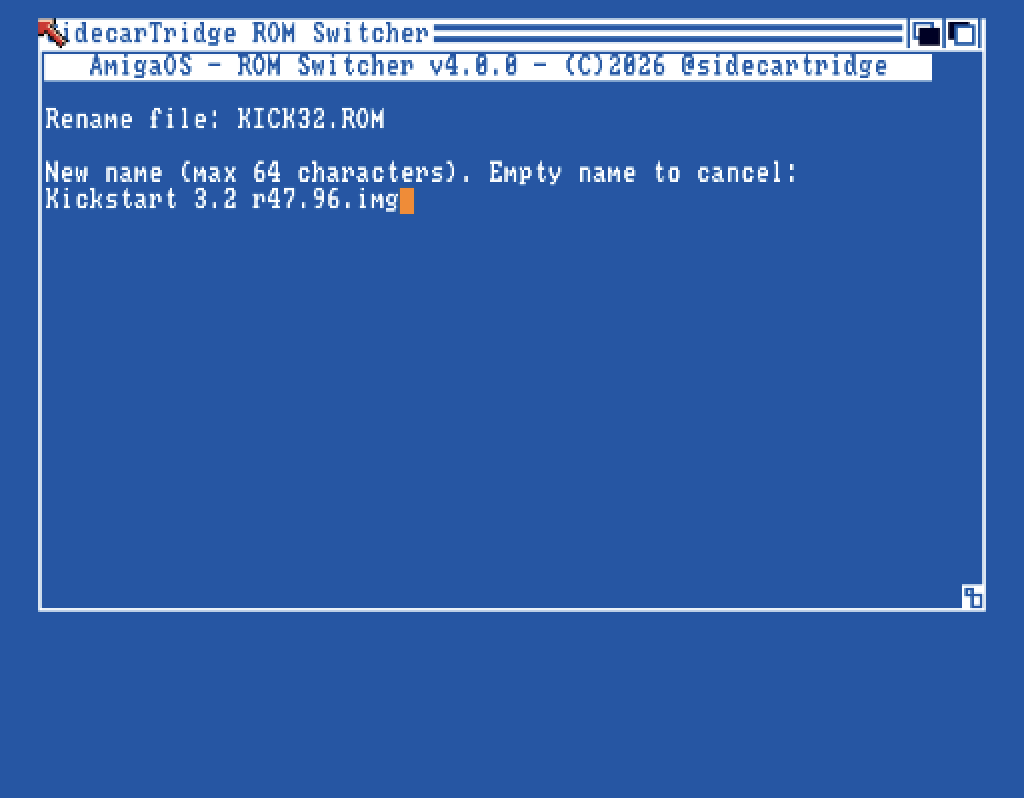
- Names can have up to 63 characters, letters, numbers, spaces and symbols; the prompt says 64.
- A name already in use, or one that a drive cannot store (with characters such as
?or*, or a name likeCON), is refused. - The default and the rescue image cannot be renamed: choose another default first, or name another image in
RESCUE.TXTfor the rescue one.
Delete a ROM image
Move to the image and press D. The SWITCHER asks you to confirm with an uppercase Y; any other key cancels.
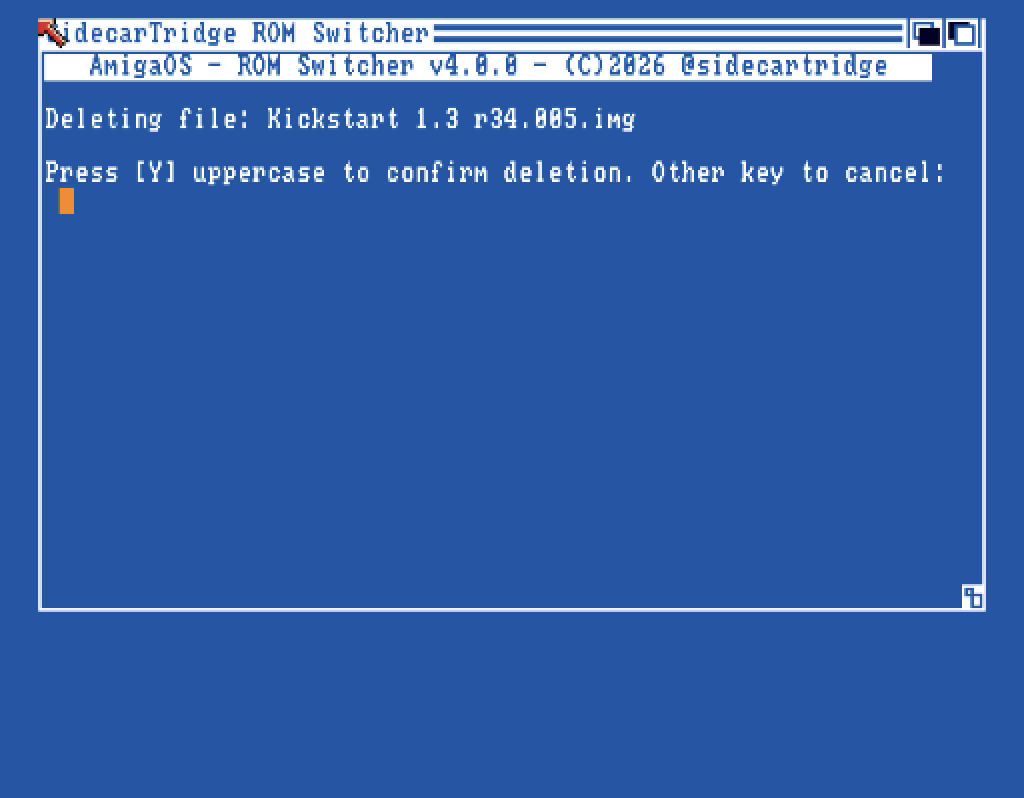
The default image, the rescue image and the last image on the board cannot be deleted.
The board’s settings
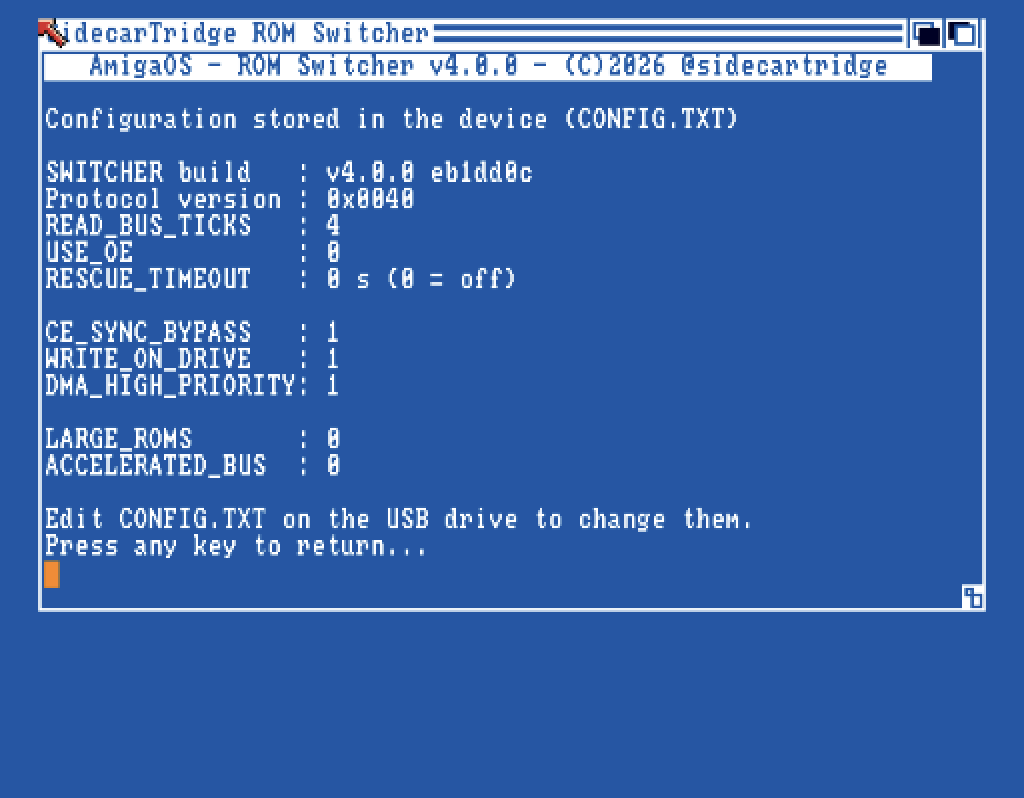
Press C to see the settings the board is using, read from CONFIG.TXT, and the SWITCHER’s version. The page only shows them: to change them, edit CONFIG.TXT on the ROMEMUL drive (Advanced Settings).
Rescue mode
If a ROM image does not start, the rescue image gets you back. A new board has the rescue switcher as its rescue image: a small program in the board itself, which lists your ROM images and starts the one you choose, even when nothing else boots.
With the RESCUE button
The RESCUE cable and button come with the kit. They connect to the RESCUE pins on the back of the board.

- Switch the Amiga off.
- Connect the RESCUE cable to the board, if it is not connected yet.
- Press and hold the RESCUE button.
- Switch the Amiga on.
- Release the button once the Amiga has started.
On its own
If the board cannot serve the default ROM image (none has been chosen yet, or it is larger than 512 KB), it starts the rescue image instead.
Firmware v4.0.0 also has RESCUE_TIMEOUT, which starts the rescue image when the computer’s RESET button is held at power-on. The Amiga 500 and 2000 have no RESET button, so it does not work on them: on the Amiga, use the RESCUE button.
The rescue switcher
The rescue switcher shows the list of your ROM images:
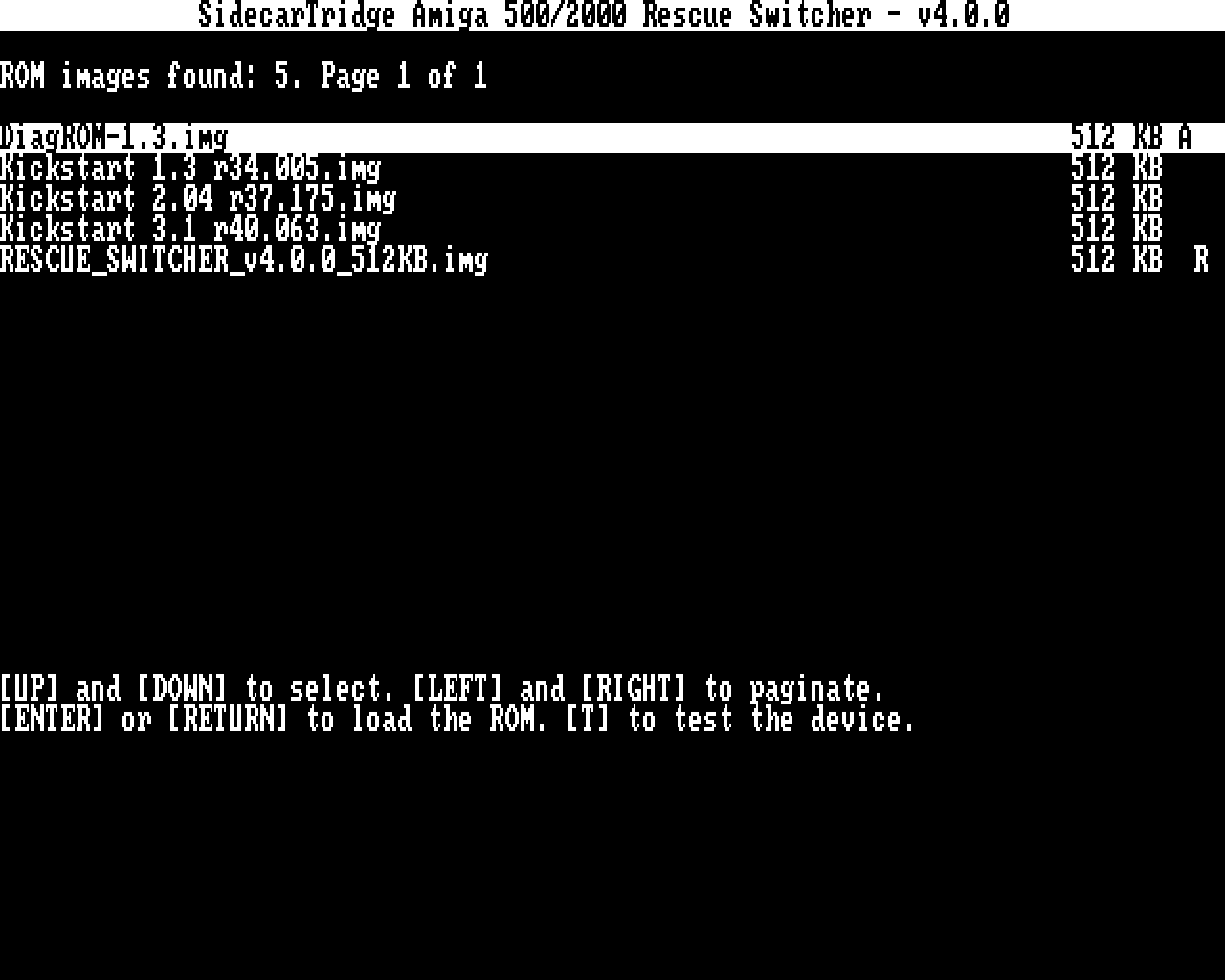
Move with the arrow keys and press RETURN. It asks for confirmation; press any key to start that image, or ESC to go back. The Amiga restarts with it.
Press T instead to test the board. The ROM Rescue Switcher page explains every screen and the test results.
An image chosen in the rescue switcher becomes the default one until you next eject the ROMEMUL drive. The board then takes the default from DEFAULT.TXT again. To keep your choice, select the image in the SWITCHER as well, or write its name in DEFAULT.TXT.
Change the rescue image
The rescue image can only be changed in RESCUE.TXT on the ROMEMUL drive (Getting Started). The SWITCHER cannot change it, on purpose: it is your way back. Keep the rescue switcher there: it can start any of your images.
Previous: Hardware Installation Main Next: Advanced Settings