ROM Rescue Switcher
The ROM Rescue Switcher is a bare-metal rescue ROM for the SidecarTridge ROM Emulator family. It boots directly from the rescue image and lets you choose another ROM image already stored on ROMEMUL, without depending on TOS, GEMDOS, BIOS, XBIOS, Kickstart, or AmigaOS.
Project links:
Table of contents
What it is
The ROM Rescue Switcher is intended as a recovery tool for ROM-emulator integrations that support a rescue image.
When the target system enters rescue mode, the switcher boots and presents a ROM chooser menu. From there, you can select another ROM image already available on the device and continue booting with that image instead of editing files from a host computer.
Supported platforms
Current builds are published for:
- Atari ST / Mega ST
- Atari STE / Mega STE
- Amiga 500 / Amiga 2000
Available images
Download the image that matches your target machine and ROM size:
| Target system | ROM size | Rescue image file |
|---|---|---|
| Atari ST / Mega ST | 192 KB | RESCUE_SWITCHER_vX.Y.Z_192KB.img |
| Atari STE / Mega STE | 256 KB | RESCUE_SWITCHER_vX.Y.Z_256KB.img |
| Amiga 500 / Amiga 2000 | 512 KB | RESCUE_SWITCHER_vX.Y.Z_512KB.img |
Replace vX.Y.Z with the actual release version you downloaded.
Download
- Open the project releases page.
- Open the latest release, or the specific release version you want to use.
- In the release assets, find the rescue image that matches your machine and ROM size from the table above.
- Download that
.imgfile to your computer.
You can keep the original file name or rename it, but RESCUE.TXT must contain the exact final image file name.
Installing the rescue image
- Connect the device to your computer so the
ROMEMULvolume appears. - Copy the rescue image file to the root of
ROMEMUL. - Edit
RESCUE.TXTso it contains exactly the rescue image file name. - Eject the
ROMEMULvolume safely. - Enter rescue mode on the target system or product integration.
Always eject or unmount ROMEMUL after copying files or changing RESCUE.TXT, so the device reindexes the file list correctly.
What happens at boot
At rescue boot, the switcher:
- starts directly from ROM without host operating system services
- verifies its own ROM contents before entering the chooser
- scans the images already stored on the device
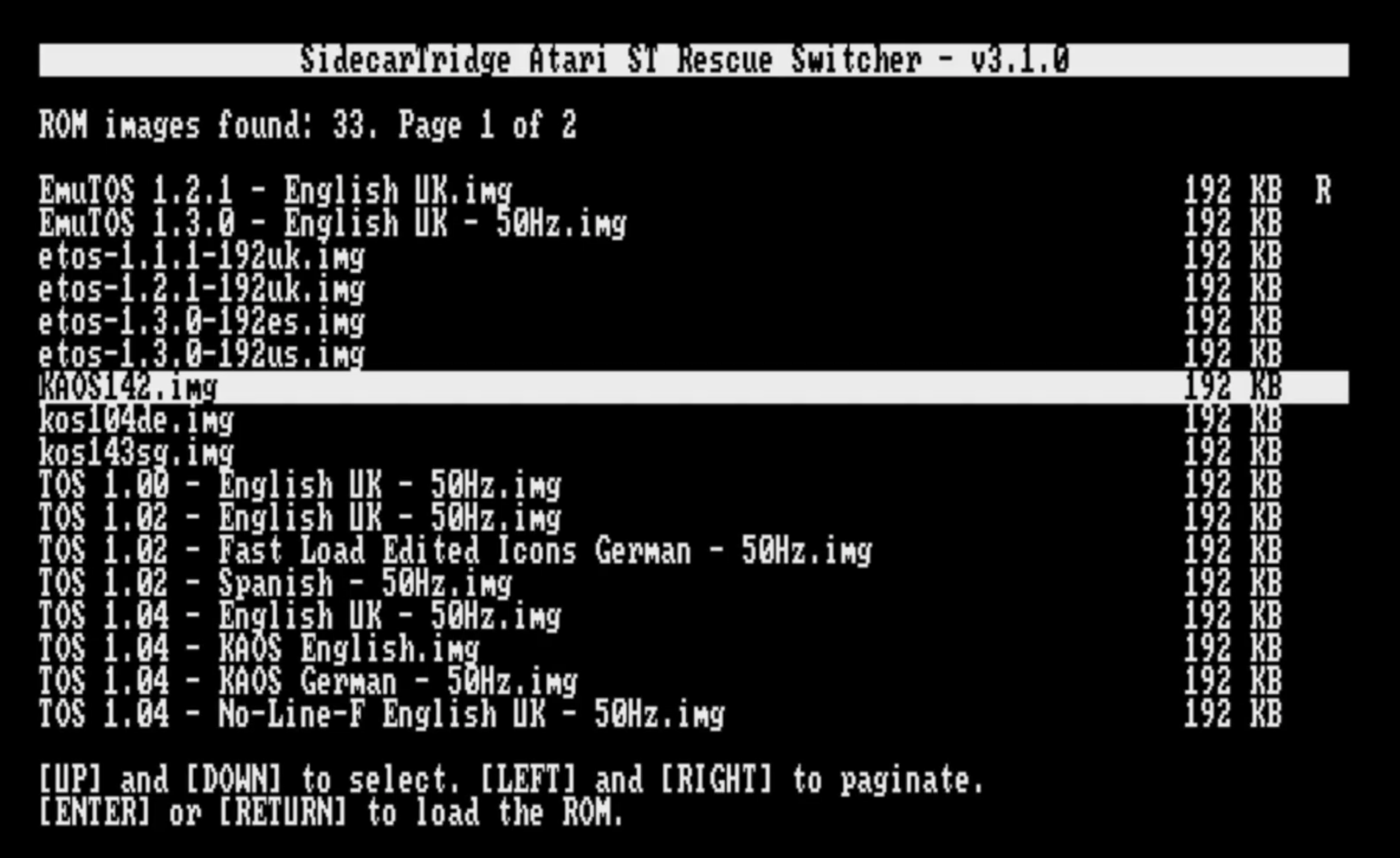
- shows a text-based selection menu
- boots the ROM image you select
Chooser screen:
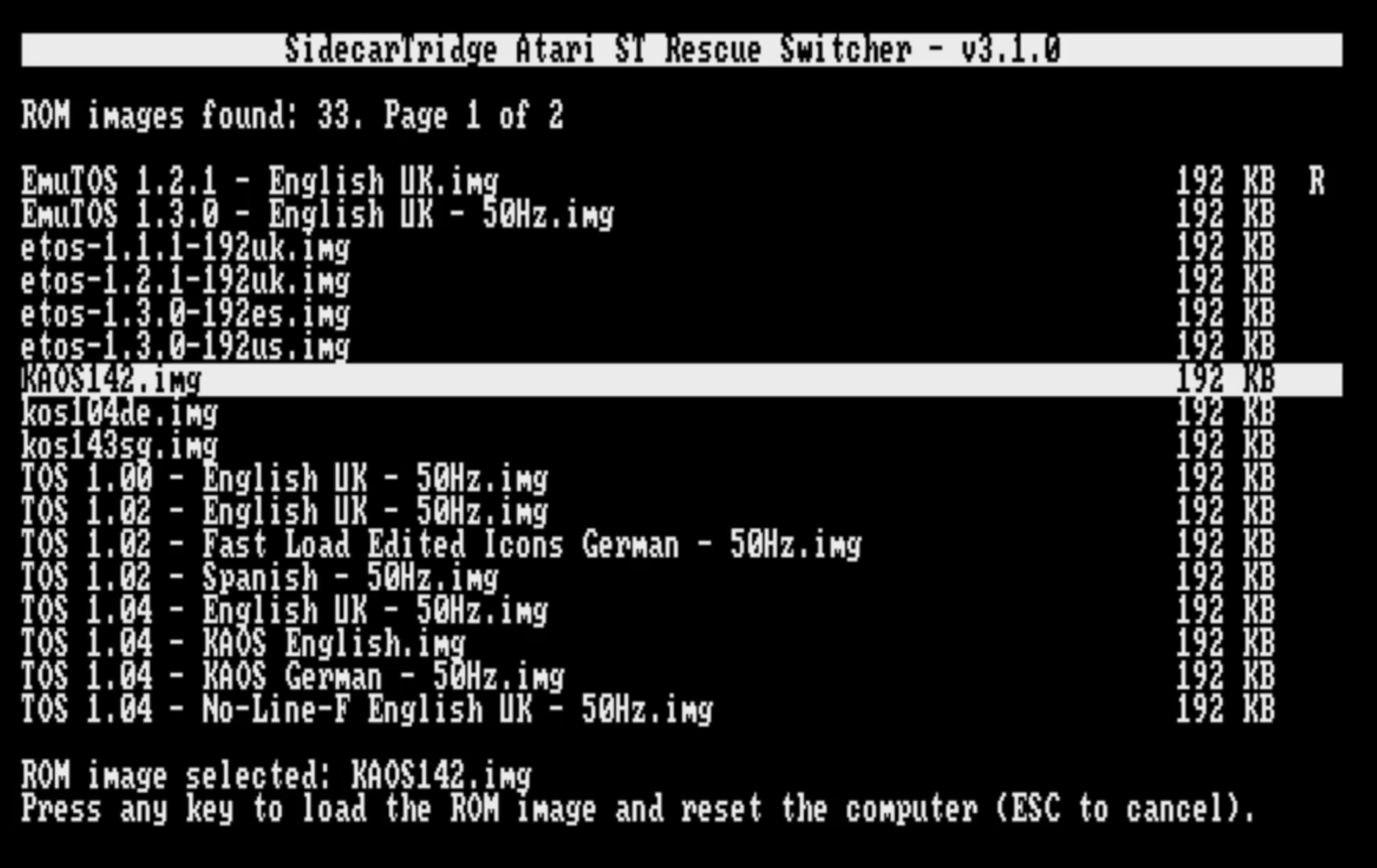
Load confirmation screen:
Menu markers
As in the full SWITCHER applications for TOS and Kickstart, the rescue-switcher list uses status letters to identify special ROM images:
Ameans the active or default ROM. This is the ROM image that boots when you power on the device normally.Rmeans the rescue ROM. This is the ROM image that boots when you power on the device in rescue mode.
Notes for SidecarTridge products
If you are using a product built on the ROM Emulator family, the rescue-mode procedure is product-specific:
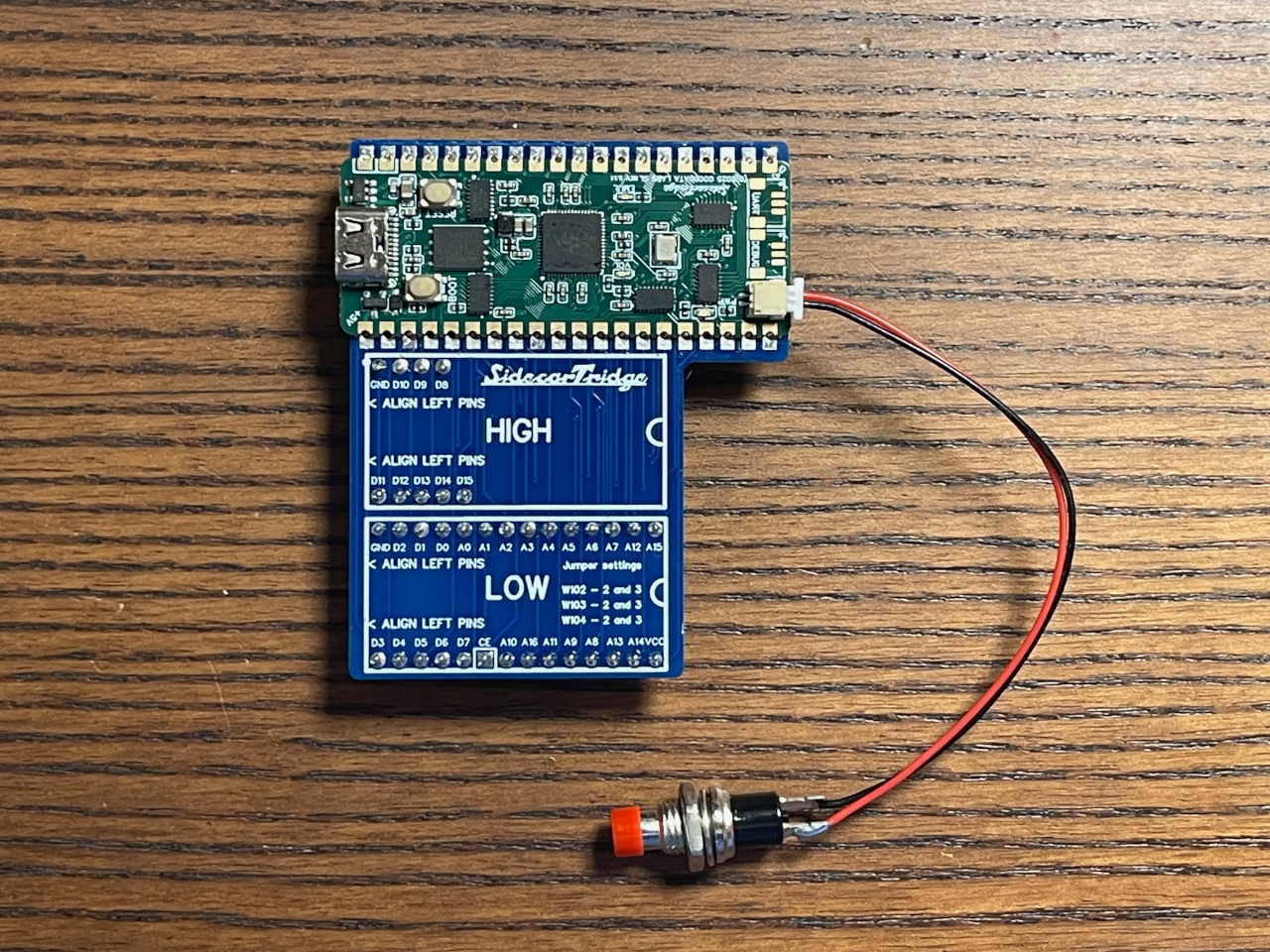
On SidecarTridge TOS and Kickstart Emulator products, rescue mode is activated by short-circuiting the RESCUE jumper on the reverse side of the board. For user convenience, a rescue mode cable and button are included with the emulator.
TOS rescue setup:
Kickstart rescue setup:

Development status
The current project publishes active rescue-switcher builds for Atari ST, Atari STE, and Amiga Kickstart-replacement ROM setups.
Previous: Firmware & Files (ROMEMUL) Main Next: Firmware API