Diagnosing your Amiga with DIAGROM and Kickstart Emulator
Use this chapter to enable and run the bundled DiagROM 1.3 image on the SidecarTridge Kickstart emulator. DiagROM is a diagnostic ROM by John “Chucky/The Gang” Hertell that helps you test and troubleshoot classic Amiga hardware.
This software is provided by a third party and is not affiliated with SidecarTridge, but the developer asks that if you find it useful, please consider a donation to a charity of your choice. See diagrom.com for details.
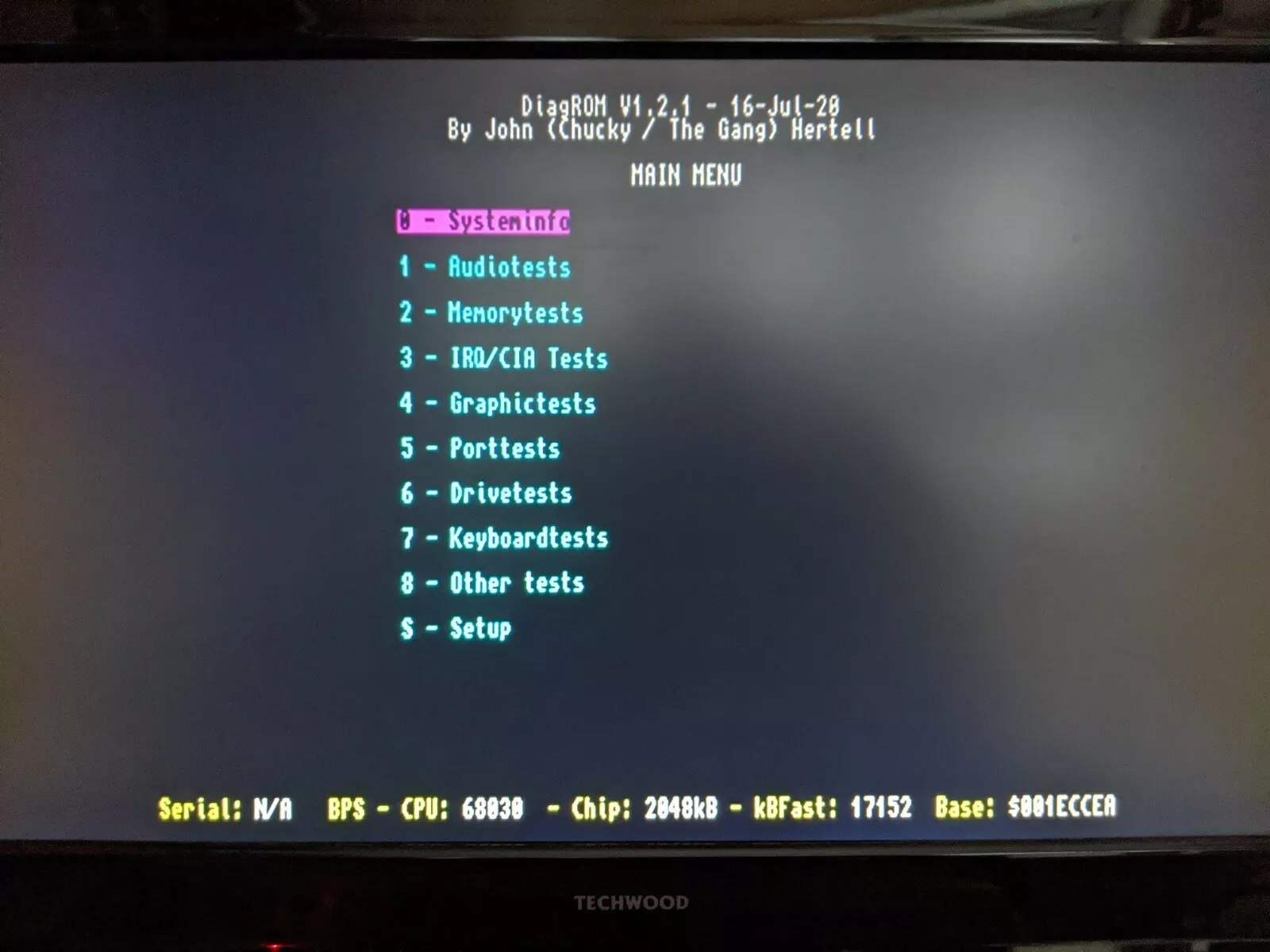
Table of contents
What you need
- A SidecarTridge Kickstart emulator installed and working on your Amiga.
- A computer with USB to access the
ROMEMULvolume (see Getting Started).
DiagROM 1.x is listed as compatible with the SidecarTridge Kickstart emulator in the Compatibility table.
Bundled DiagROM image
Recent SidecarTridge Kickstart emulator bundles already include the DiagROM 1.3 Amiga ROM image, so there is no separate download or conversion step required for normal setup.
The bundled DiagROM.img image is already in the correct format for the emulator. No byte swapping or conversion is required.
Select DiagROM on the SidecarTridge Kickstart emulator
Since firmware version 3.1.0, the default ROM image boots the bundled DiagROM program. To install and change the available ROM images, read the User Guide.
Boot and run diagnostics
- Disconnect the SidecarTridge Kickstart emulator from your computer and connect it to your Amiga.
- Power on the Amiga.
- DiagROM should boot directly and present the diagnostics screen.
- Use the on-screen tests to check RAM, CPU, and custom chips.
If DiagROM does not boot, confirm that DiagROM.img is still present in ROMEMUL, and verify that DEFAULT.TXT or RESCUE.TXT contains the exact file name.
Previous: Kickstart ROM Conversion Main Next: Troubleshooting